 Ferrocast
 Blur part of a video on your Mac, without uploading it
Ferrocast covers up to 64 areas of a video, each with its own start and end, with blur or a solid black box. It runs on your Mac and uploads nothing. It needs ffmpeg (brew install ffmpeg). It does not follow a face or an object that moves: each area stays where you place it.
Download FerrocastFree · MIT · Apple Silicon · macOS 13 or later · needs ffmpeg
Before you start: what it does and what it does not
It does
- Several areas in one pass, up to 64, each with its own start and end in seconds.
- Blur, or a solid black box. The black is not a colour you pick, and the blur strength is fixed in the encoder. The 2–80 px blur slider is for photos, not video.
- mp4, mov and mkv in. The copy is always an H.264 MP4 next to the original. The picture is re-encoded, so this is not a promise of the same quality. If the file has an audio track, that audio is copied rather than re-encoded.
It does not
- Tracking a face or an object through the video. The area does not move with the subject.
- A preview of the finished blur. The window only marks the areas on a reference frame. Do not expect the export to be drawn in the window before you press ↵.
How to blur part of a video on a Mac
- Install ffmpeg once. Run brew install ffmpeg. If ffmpeg is missing, Ferrocast shows that command instead of failing quietly. Video redaction does not run without it. The same line is in Optional tools.
- Open Redact Video. There is no keyboard shortcut. Drag the video and tap ⌘ to open the Tools wheel, then choose Redact Video. You can also open it from the editors in the Convert view.
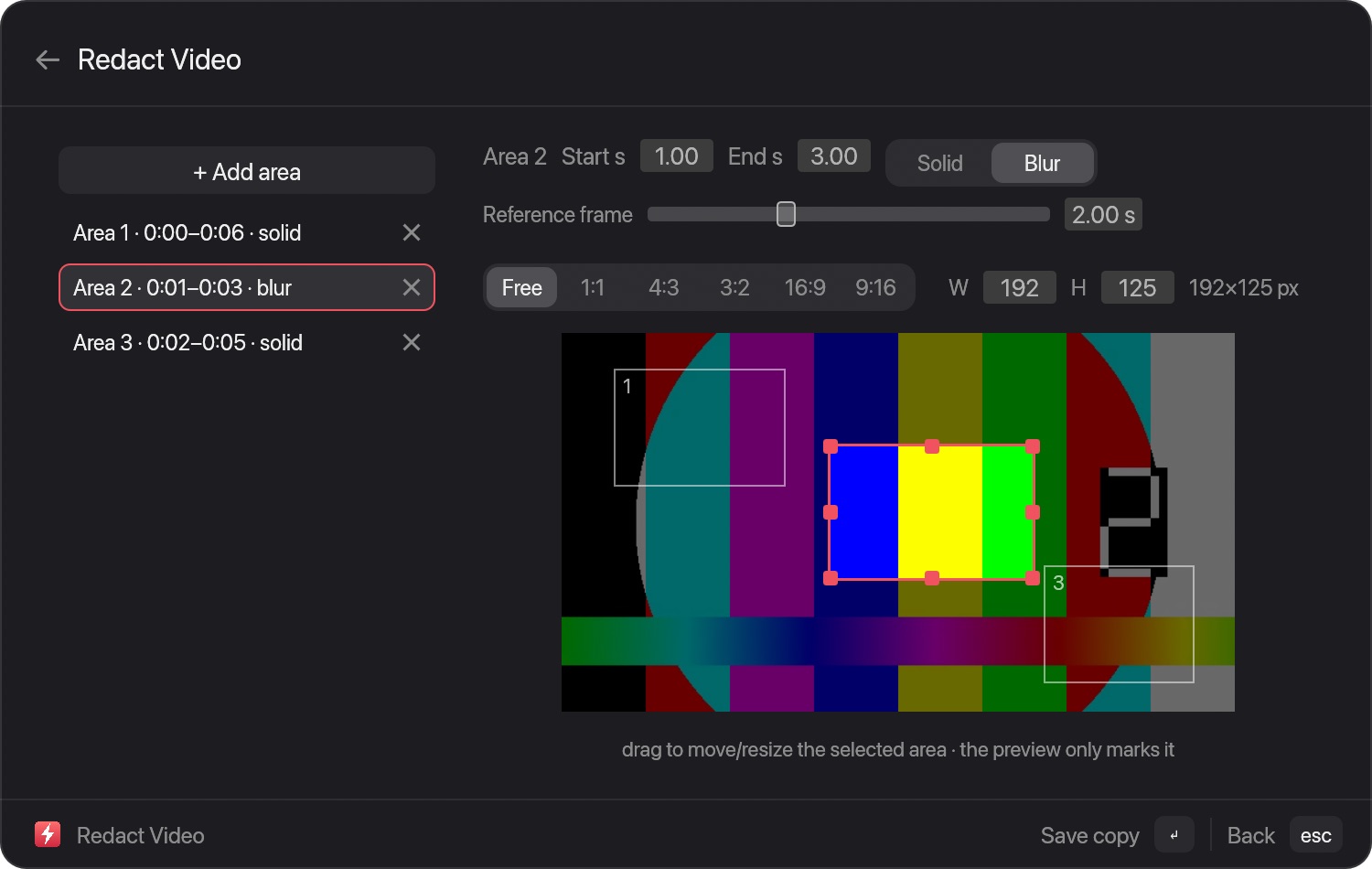
- Add areas and set each one’s time. Each area is a rectangle you drag. Set its start and end in seconds, and choose Solid or Blur. The Reference frame slider picks which frame you see while you place the boxes. Overlapping areas are allowed, and a rotated video is handled in the displayed size.
- Save the copy. Press ↵. Ferrocast writes a new file next to the original, with “redacted” before .mp4, and never overwrites the original. The container is MP4 even when the source was MOV or MKV.
Install Ferrocast with Homebrew
brew tap drumst0ck/ferrocast
brew install drumst0ck/ferrocast/ferrocast
ln -sfn "$(brew --prefix)/opt/ferrocast/Ferrocast.app" \
  /Applications/Ferrocast.app
open /Applications/Ferrocast.app
Do it with one command
redact 10,10 200x100 0:05-0:09 blur covers a 200×100 pixel area whose top-left corner is at x 10, y 10, from 5 seconds to 9 seconds, with blur. Without the word blur, the same rectangle is a solid black box.
The video command takes one area. The parser does not accept several areas on one line. For more than one area, use the Redact Video window. (On a photo, the typed command can list several rectangles; that is a different tool.)
What if the face moves?
Ferrocast does not track faces or objects in a video. If the person walks across the frame, the box stays put and the face leaves it. I would rather say that here than after you have installed it.
You can split the time into short ranges and place a new area for each range. The limit is 64 areas, and each one has its own start and end. That is a workaround for a short shift, not a tracker, and it is not practical for a long shot of someone moving.
For a moving face, use an editor that tracks. Apple’s Final Cut Pro user guide includes object tracking (“Track an effect to a moving object”). Cutscript can follow a blur and can find faces and emails with Vision on a Mac; its blur page does not show a price. Deface blurs detected faces offline on a Mac (Apple Silicon or Intel), is free, and says detection can miss people.
For photos, it does detect faces and text
This section is for still images, not video. Redact photo (⇧⌘R) finds faces or text on your Mac with Vision, or you draw the areas yourself. The cover is a solid colour or a blur from 2 to 80 pixels. Inputs are jpg, png, webp, heic and tiff. Typed commands: redact faces, redact text blur 25.
Nothing in that window follows a face through a video. If the file is a video, use Redact Video and place the boxes yourself.
A short comparison
| Ferrocast Redact Video | iMovie / QuickTime | Koi | Deface | Final Cut Pro | |
|---|---|---|---|---|---|
| Price | Free (MIT) | iMovie is free on the Mac App Store. QuickTime Player ships with macOS. | No free plan. Pro is $15 a month, or $1 for the first 3 days. Lifetime is a one-time purchase; the guide does not show that amount. Koi’s guide. | Free | $299.99 once, or Apple Creator Studio at $12.99 a month or $129 a year. apple.com/final-cut-pro. |
| Uploads the video | No | Not stated on the Apple pages opened. Both are Mac apps. | Koi’s guide says no | The homepage says no uploads | A Mac app; the pricing page does not discuss uploads |
| Several areas, each with its own time | Yes, up to 64 | Not described in the QuickTime Player guide that was opened (it describes trim, rearrange, rotate and split). | The guide says the boxes stay for the whole video | Automatic faces; per-area times are not on the homepage | Not quoted here. The user guide lists masking and object tracking. |
| Follows a moving face or object | No | Not described in that QuickTime guide | The guide says no: the boxes stay put | Automatic face detection. They warn it can miss people. Motion tracking is not described on the homepage. | Yes. The user guide includes “Track an effect to a moving object”. |
| Requirements | Apple Silicon, macOS 13 or later, ffmpeg | macOS | Not stated on the blur guide | Mac, Apple Silicon or Intel | macOS 15.6 or later, 8 GB of memory, 7.2 GB of disk. Some features need Apple silicon. |
Checked 28 October 2026. Koi from its own guide, Deface from its homepage, Final Cut Pro from apple.com and the user guide, iMovie from the US App Store, QuickTime from Apple’s user guide. Screenify’s price was not opened and is not in this table. Ferrocast is independent and is not affiliated with Apple or the other products named here.
Related guides
Questions
Can I blur part of a video on a Mac for free?
Yes. Ferrocast, a free open-source Mac app, covers up to 64 areas of an mp4, mov or mkv video with blur or a solid black box, each area with its own start and end time. It runs locally and needs ffmpeg (brew install ffmpeg). It does not track moving faces.
Does it follow a face that moves?
No. In a video, each area stays where you put it for its time range. Automatic face and text detection works on photos only. To follow a moving face you need an editor with tracking, such as Final Cut Pro.
Is the video uploaded anywhere?
No. Ferrocast processes the video on your Mac with ffmpeg and saves a new copy next to the original, without overwriting it.
Which formats does it accept, and does it overwrite the original?
It accepts mp4, mov and mkv. The copy is an H.264 MP4 named with “redacted”, next to the original. It never overwrites the original. The picture is re-encoded; if the file has audio, that audio is copied.
Do I need ffmpeg?
Yes. Install it with brew install ffmpeg. If it is missing, Ferrocast shows that command.
What about a photo?
Redact photo (⇧⌘R) can detect faces and text on the Mac, or you draw areas, with a solid colour or a blur from 2 to 80 pixels. That is for jpg, png, webp, heic and tiff, not for video.
What languages is Ferrocast available in?
English, plus Spanish, German, French, Brazilian Portuguese, Japanese and Simplified Chinese. It follows the macOS language order, or Settings → General → Language. The choice stays on that Mac and is not synced. Anything not translated yet shows in English. Names you type and what Raycast extensions show are never translated.
Download Ferrocast, install ffmpeg once, and open Redact Video from the Tools wheel. The limits are in the Redact Video reference.