 Ferrocast Install
 Drag a file. Tap a key. Drop.
Hold a file, tap Shift for conversions, Command for tools, or Control for actions. The wheel stays open until you drop it. Everything runs on your Mac; nothing is uploaded.
46 input formats · 275 conversion pairs · 26 file tools · 7 file actions
Three keys, three wheels
Start dragging a file, then tap a key. Tap another key to switch wheels; the wheel stays open until you drop or cancel.
- ⇧
Shift → Convert
A wheel of the formats this file can become.
- ⌘
Command → Tools
Windows and presets for the file: crop, trim, compress, organize pages…
- ⌃
Control → Actions
AirDrop, shelf, copy, move, copy path, Terminal, zip.
Try the wheel
A picture of each wheel, built from the lists the app uses. Pick a key, then move around with the arrow keys.
Sample: a PDF. Drag a file, tap Shift.
Sample: an MP4 video. Drag a file, tap Command.
Sample: any file or folder. Drag a file, tap Control.
This is a picture of the wheel built from the same lists the app uses, not a recording of the app. Hover or focus a segment, press Shift, ⌘ or Ctrl, and use the arrow keys. Segments marked with a dot need an optional tool installed.
Every conversion, searchable
Find what a format can become. All 275 pairs are listed, grouped by family.
275 of 275 conversion pairs shown
Images
57 pairs from 8 formats
- JPEG.jpg →
- PNG
- WebPneeds cwebp
- HEIC
- TIFF
- AVIF
- BMP
- PNG.png →
- JPEG
- WebPneeds cwebp
- HEIC
- TIFF
- AVIF
- BMP
- WebP.webp →
- JPEG
- PNG
- HEIC
- TIFF
- AVIF
- BMP
- HEIC.heic →
- JPEG
- PNG
- WebPneeds cwebp
- TIFF
- AVIF
- BMP
- TIFF.tiff →
- JPEG
- PNG
- WebPneeds cwebp
- HEIC
- AVIF
- BMP
- Other.svg →
- JPEG
- PNG
- WebPneeds cwebp
- HEIC
- TIFF
- AVIF
- BMP
- AVIF.avif →
- JPEG
- PNG
- WebPneeds cwebp
- HEIC
- TIFF
- BMP
- BMP.bmp →
- JPEG
- PNG
- WebPneeds cwebp
- HEIC
- TIFF
- AVIF
Audio
56 pairs from 8 formats
- MP3.mp3 →
- M4A
- WAV
- FLACneeds ffmpeg
- OGGneeds ffmpeg
- Opusneeds ffmpeg
- AIFF
- WMAneeds ffmpeg
- M4A.m4a →
- MP3needs ffmpeg
- WAV
- FLACneeds ffmpeg
- OGGneeds ffmpeg
- Opusneeds ffmpeg
- AIFF
- WMAneeds ffmpeg
- WAV.wav →
- MP3needs ffmpeg
- M4A
- FLACneeds ffmpeg
- OGGneeds ffmpeg
- Opusneeds ffmpeg
- AIFF
- WMAneeds ffmpeg
- FLAC.flac →
- MP3needs ffmpeg
- M4A
- WAV
- OGGneeds ffmpeg
- Opusneeds ffmpeg
- AIFF
- WMAneeds ffmpeg
- OGG.ogg →
- MP3needs ffmpeg
- M4Aneeds ffmpeg
- WAVneeds ffmpeg
- FLACneeds ffmpeg
- Opusneeds ffmpeg
- AIFFneeds ffmpeg
- WMAneeds ffmpeg
- Opus.opus →
- MP3needs ffmpeg
- M4Aneeds ffmpeg
- WAVneeds ffmpeg
- FLACneeds ffmpeg
- OGGneeds ffmpeg
- AIFFneeds ffmpeg
- WMAneeds ffmpeg
- AIFF.aiff →
- MP3needs ffmpeg
- M4A
- WAV
- FLACneeds ffmpeg
- OGGneeds ffmpeg
- Opusneeds ffmpeg
- WMAneeds ffmpeg
- WMA.wma →
- MP3needs ffmpeg
- M4Aneeds ffmpeg
- WAVneeds ffmpeg
- FLACneeds ffmpeg
- OGGneeds ffmpeg
- Opusneeds ffmpeg
- AIFFneeds ffmpeg
Video
48 pairs from 7 formats
- MP4.mp4 →
- MOV
- MKVneeds ffmpeg
- WebMneeds ffmpeg
- AVIneeds ffmpeg
- WMVneeds ffmpeg
- GIFneeds ffmpeg
- MP3needs ffmpeg
- MOV.mov →
- MP4
- MKVneeds ffmpeg
- WebMneeds ffmpeg
- AVIneeds ffmpeg
- WMVneeds ffmpeg
- GIFneeds ffmpeg
- MP3needs ffmpeg
- MKV.mkv →
- MP4needs ffmpeg
- MOVneeds ffmpeg
- WebMneeds ffmpeg
- AVIneeds ffmpeg
- WMVneeds ffmpeg
- GIFneeds ffmpeg
- MP3needs ffmpeg
- WebM.webm →
- MP4needs ffmpeg
- MOVneeds ffmpeg
- MKVneeds ffmpeg
- AVIneeds ffmpeg
- WMVneeds ffmpeg
- GIFneeds ffmpeg
- MP3needs ffmpeg
- AVI.avi →
- MP4needs ffmpeg
- MOVneeds ffmpeg
- MKVneeds ffmpeg
- WebMneeds ffmpeg
- WMVneeds ffmpeg
- GIFneeds ffmpeg
- MP3needs ffmpeg
- WMV.wmv →
- MP4needs ffmpeg
- MOVneeds ffmpeg
- MKVneeds ffmpeg
- WebMneeds ffmpeg
- AVIneeds ffmpeg
- GIFneeds ffmpeg
- MP3needs ffmpeg
- GIF.gif →
- MP4needs ffmpeg
- MOVneeds ffmpeg
- MKVneeds ffmpeg
- WebMneeds ffmpeg
- AVIneeds ffmpeg
- WMVneeds ffmpeg
PDF
9 pairs from 1 format
- PDF.pdf →
- Word (DOCX)needs LibreOffice
- Pages
- PowerPoint (PPTX)needs LibreOffice
- Excel (XLSX)
- JPEG
- PNG
- EPUB
- Plain text
- Markdown
Documents
65 pairs from 9 formats
- Word (DOCX).docx →
- Pages
- PDFneeds LibreOffice
- Plain text
- Markdown
- HTML
- EPUBneeds LibreOffice
- PNGneeds LibreOffice
- JPEGneeds LibreOffice
- Pages.pages →
- Word (DOCX)needs LibreOffice
- PDFneeds LibreOffice
- Plain textneeds LibreOffice
- Markdownneeds LibreOffice
- HTMLneeds LibreOffice
- EPUBneeds LibreOffice
- PNGneeds LibreOffice
- JPEGneeds LibreOffice
- Markdown.md →
- Word (DOCX)
- Pages
- PDFneeds LibreOffice
- Plain text
- HTML
- EPUB
- PNGneeds LibreOffice
- JPEGneeds LibreOffice
- Other.rtf →
- Word (DOCX)
- Pages
- PDFneeds LibreOffice
- Plain text
- Markdown
- HTML
- EPUBneeds LibreOffice
- PNGneeds LibreOffice
- JPEGneeds LibreOffice
- Other.rtfd →
- Word (DOCX)
- Pages
- PDFneeds LibreOffice
- Plain text
- Markdown
- HTML
- EPUBneeds LibreOffice
- PNGneeds LibreOffice
- JPEGneeds LibreOffice
- Other.textClipping →
- Word (DOCX)
- Pages
- PDFneeds LibreOffice
- Plain text
- Markdown
- HTML
- EPUB
- PNGneeds LibreOffice
- JPEGneeds LibreOffice
- EPUB.epub →
- PDFneeds LibreOffice
- Word (DOCX)
- Pages
- Plain text
- Markdown
- HTML
- Plain text.txt →
- Word (DOCX)
- Pages
- PDFneeds LibreOffice
- Markdown
- HTML
- EPUBneeds LibreOffice
- JPEGneeds LibreOffice
- PNGneeds LibreOffice
- HTML.html →
Slides
6 pairs from 2 formats
- Other.ppt →
- PDFneeds LibreOffice
- JPEGneeds LibreOffice
- PNGneeds LibreOffice
- PowerPoint (PPTX).pptx →
- PDFneeds LibreOffice
- JPEGneeds LibreOffice
- PNGneeds LibreOffice
Spreadsheets
21 pairs from 5 formats
- Excel (XLSX).xlsx →
- OpenDocumentneeds LibreOffice
- CSVneeds LibreOffice
- TSVneeds LibreOffice
- PDFneeds LibreOffice
- Other.xls →
- Excel (XLSX)needs LibreOffice
- OpenDocumentneeds LibreOffice
- CSVneeds LibreOffice
- TSVneeds LibreOffice
- PDFneeds LibreOffice
- OpenDocument.ods →
- Excel (XLSX)needs LibreOffice
- CSVneeds LibreOffice
- TSVneeds LibreOffice
- PDFneeds LibreOffice
- CSV.csv →
- Excel (XLSX)needs LibreOffice
- OpenDocumentneeds LibreOffice
- TSVneeds LibreOffice
- PDFneeds LibreOffice
- TSV.tsv →
- Excel (XLSX)needs LibreOffice
- OpenDocumentneeds LibreOffice
- CSVneeds LibreOffice
- PDFneeds LibreOffice
Subtitles
4 pairs from 2 formats
- SubRip (SRT).srt →
- WebVTTneeds ffmpeg
- Plain text
- WebVTT.vtt →
- SubRip (SRT)needs ffmpeg
- Plain text
Archives
9 pairs from 4 formats
- ZIP.zip →
- TAR
- GZIP
- TAR.tar →
- ZIP
- GZIP
- GZIP.gz →
- ZIP
- TAR
- Other.rar →
- ZIP
- TAR
- GZIP
No conversion matches. Clear a filter to see more.
Chips marked “needs” depend on an optional tool (ffmpeg, LibreOffice, cwebp, unrar); everything else uses tools that ship with macOS.
RAR extraction needs a working unrar, and .pages is written in the iWork '09 format. ffmpeg and LibreOffice are used when installed; macOS tools come first.
26 file tools
Windows and presets for the file you are holding. Type a short command in the Convert view to skip the window.
Image editors
For JPEG, PNG, WebP, HEIC and TIFF. Originals are never overwritten.
-
Edit photo
Sliders for brightness, contrast, saturation, warmth, clarity, sharpen, grain, denoise and dehaze, with a preview on a smaller copy.
⇧⌘E on a selected file in the launcher list
Type
edit brightness 20 grain 30.jpg.png.webp.heic.tiff
-
Annotate photo
Arrows, lines, boxes, ellipses, highlights, pen, numbered labels, magnifiers, text, callouts and image stamps. Saves a PNG copy.
⇧⌘A on a selected file in the launcher list
.jpg.png.webp.heic.tiff
-
Add a background
Put the picture on a colour or blurred backdrop, with padding, rounded corners and a shadow.
⇧⌘B on a selected file in the launcher list
Type
frame blur 40.jpg.png.webp.heic.tiff
-
Crop image
Drag a rectangle, lock an aspect ratio, or type exact width and height.
⇧⌘K on a selected file in the launcher list
.jpg.png.webp.heic.tiff
-
Redact photo
Drag your own areas over the picture, or type redact faces or redact text to detect them on your Mac. Solid colour or blur.
⇧⌘R on a selected file in the launcher list
Type
redact faces.jpg.png.webp.heic.tiff
-
Make a collage
Grid, row, column or featured layouts with spacing, rounded corners and a background.
Type
collage row 1600 gap 16.jpg.png.webp.heic.tiff.svg
-
Create a PDF
Combine the selected images into one PDF, a page per image, in an order you choose.
.jpg.png.webp.heic.tiff.svg
Video windows
For MP4, MOV and MKV. Preview frames and re-encoding need ffmpeg.
-
Trim video
Step by frame or second, set in and out markers, and write an exact re-encoded cut.
⇧⌘V on a selected file in the launcher list
Type
trim 0:10-0:30.mp4.mov.mkv
-
Crop video
Drag a rectangle over a preview frame or type exact dimensions.
⇧⌘J on a selected file in the launcher list
.mp4.mov.mkv
-
Change video speed
From a quarter of the speed to four times, with the new duration shown. No playback preview.
⇧⌘L on a selected file in the launcher list
.mp4.mov.mkv
-
Video snapshots
Pick frames and save them as full-resolution PNG files.
⇧⌘S on a selected file in the launcher list
.mp4.mov.mkv
-
Split video
Add cut points on the timeline or split into equal parts. Clips land in one new folder.
.mp4.mov.mkv
-
Redact video
Cover an area with a solid colour or blur for a chosen time range. One area per run.
.mp4.mov.mkv
-
Join videos
Join several clips into one MP4 in an order you choose; the first clip sets the canvas.
.mp4.mov.mkv
-
Mute video
Write a copy of the video without its audio track.
.mp4.mov.mkv
PDF organizer and metadata
Reorder, split and merge PDFs, and read or change tags on files.
-
Organize PDF pages
Page thumbnails: rotate, duplicate, remove and reorder pages, then save a copy.
⇧⌘O on a selected file in the launcher list
Type
pages 3,1,2r.pdf
-
Merge PDFs
Merge PDFs in the order you choose.
.pdf
-
Split PDF
Split a PDF into one file per page.
.pdf
-
Edit metadata
Read tags on audio, video and PDF files, edit them or remove them. Images use a lossless removal preset.
.jpg.png.webp.heic.tiff.mp3.m4a.wav.flac.mp4.mov.mkv.gif.pdf
Audio tools
For MP3, M4A, WAV and FLAC. These use ffmpeg.
-
Normalize audio
Set a target loudness, loudness range and true peak, and see the measured level first.
.mp3.m4a.wav.flac
-
Trim audio
Waveform with start and end markers, exact times, and a button to trim silence at the ends.
.mp3.m4a.wav.flac
-
Audio channels
Mono or stereo, with left and right volume in dB.
.mp3.m4a.wav.flac
-
Audio to video
Make an MP4 from audio with a still image. The still image is set with a typed command.
Type
visualizer square image /path/cover.jpg.mp3.m4a.wav.flac
-
Bleep audio
Bleep out a stretch of audio with a typed command.
.mp3.m4a.wav.flac
Archives and compression
Make files smaller, or unpack an archive into a new folder next to it.
-
Compress
Aim for a target size, a percentage or a preset, and optionally limit the longest edge. PDF compression needs Ghostscript.
Type
500kb.jpg.png.webp.heic.tiff.mp3.m4a.wav.flac.mp4.mov.mkv.pdf
-
Extract archive
Unpack ZIP, TAR, GZ or RAR into a new folder named after the archive. Refuses entries that try to escape the folder.
.zip.tar.gz.rar
Which tools appear for which format
The wheel and the Convert list offer these tools. “Several files” is what you get with a multi-file selection.
| Format | One file | Several files |
|---|---|---|
| .jpg | Compress, Edit metadata, Edit photo, Annotate photo, Add a background, Crop image, Redact photo | Compress, Edit metadata, Crop image, Create a PDF, Make a collage |
| .png | Compress, Edit metadata, Edit photo, Annotate photo, Add a background, Crop image, Redact photo | Compress, Edit metadata, Crop image, Create a PDF, Make a collage |
| .webp | Compress, Edit metadata, Edit photo, Annotate photo, Add a background, Crop image, Redact photo | Compress, Edit metadata, Crop image, Create a PDF, Make a collage |
| .heic | Compress, Edit metadata, Edit photo, Annotate photo, Add a background, Crop image, Redact photo | Compress, Edit metadata, Crop image, Create a PDF, Make a collage |
| .tiff | Compress, Edit metadata, Edit photo, Annotate photo, Add a background, Crop image, Redact photo | Compress, Edit metadata, Crop image, Create a PDF, Make a collage |
| .svg | — | Create a PDF, Make a collage |
| .mp3 | Compress, Edit metadata, Normalize audio, Audio to video, Trim audio, Audio channels, Bleep audio | — |
| .m4a | Compress, Edit metadata, Normalize audio, Audio to video, Trim audio, Audio channels, Bleep audio | — |
| .wav | Compress, Edit metadata, Normalize audio, Audio to video, Trim audio, Audio channels, Bleep audio | — |
| .flac | Compress, Edit metadata, Normalize audio, Audio to video, Trim audio, Audio channels, Bleep audio | — |
| .mp4 | Compress, Edit metadata, Mute video, Trim video, Crop video, Change video speed, Video snapshots, Split video, Redact video | Compress, Edit metadata, Mute video, Trim video, Crop video, Change video speed, Join videos |
| .mov | Compress, Edit metadata, Mute video, Trim video, Crop video, Change video speed, Video snapshots, Split video, Redact video | Compress, Edit metadata, Mute video, Trim video, Crop video, Change video speed, Join videos |
| .mkv | Compress, Edit metadata, Mute video, Trim video, Crop video, Change video speed, Video snapshots, Split video, Redact video | Compress, Edit metadata, Mute video, Trim video, Crop video, Change video speed, Join videos |
| .gif | Edit metadata | — |
| Compress, Edit metadata, Split PDF, Organize PDF pages | Compress, Edit metadata, Split PDF, Merge PDFs | |
| .zip | Extract archive | Extract archive |
| .tar | Extract archive | Extract archive |
| .gz | Extract archive | Extract archive |
| .rar | Extract archive | Extract archive |
Seven file actions
Hold Control while dragging any file or folder.
AirDrop
Send the selected files with the system sharing picker.
Float shelf
Keep files on a small floating shelf that stays on top and pins to a screen edge. Files can be dropped onto it.
Copy
Put the files on the clipboard, ready to paste in Finder.
Move to…
Pick a destination folder and move the files there. An existing file is never overwritten.
Copy Path
Copy the path of each selected item, one per line.
Terminal / iTerm2
Open a folder, or the folder that holds a file, in Terminal or iTerm2.
Zip
Compress each selected file or folder into its own ZIP next to it. An existing ZIP is never overwritten.
Enter on a Finder selection is an opt-in setting in Settings > General (off by default, needs Accessibility); the Convert Finder Selection command also works.
The windows, as pictures
What the tool windows and wheels look like.
Rendered by the app's own screenshot mode on sample files. These are pictures of the windows, not recordings of use.
-
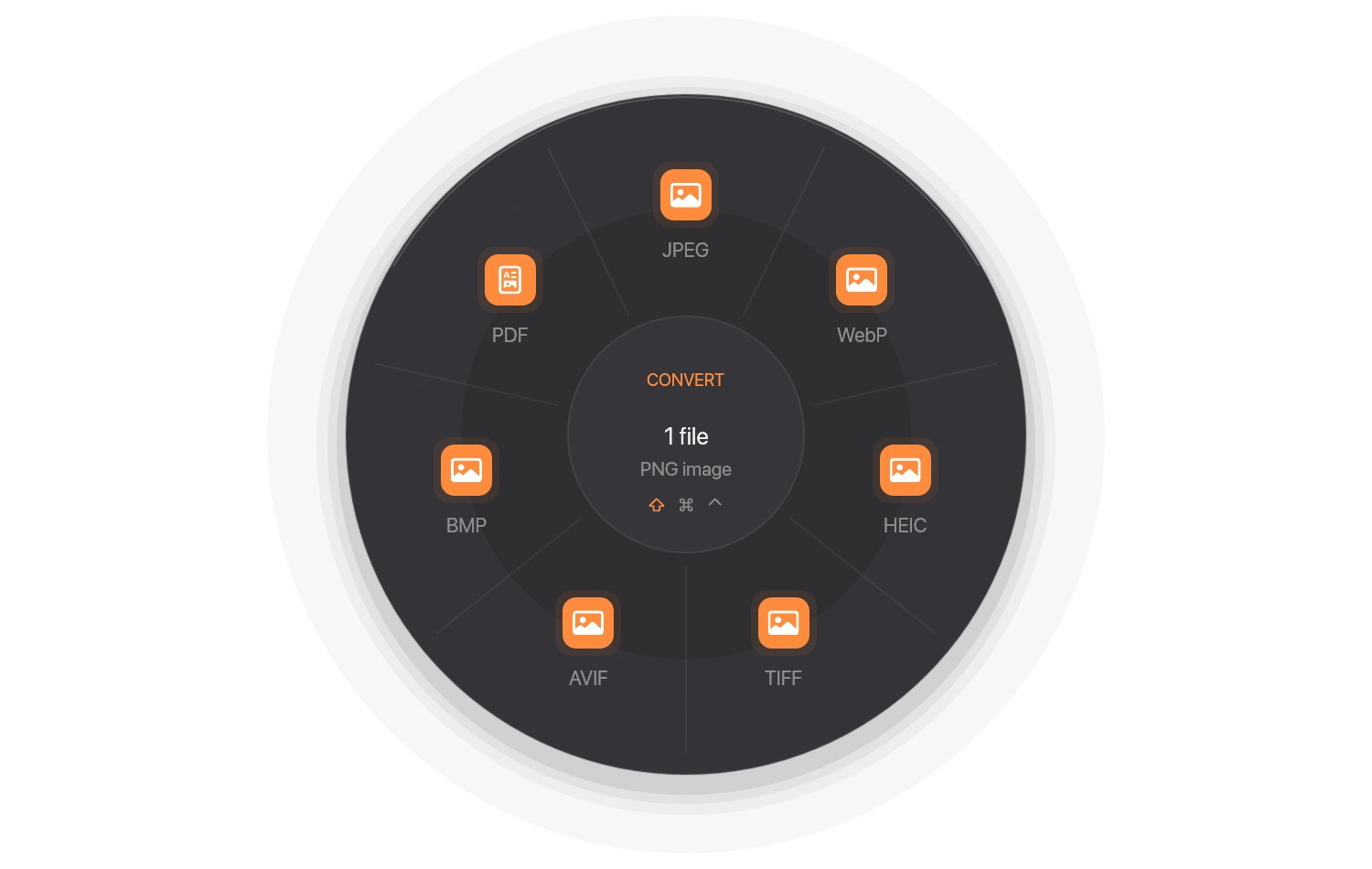
Convert wheel (dark)The Convert wheel for a PNG: one segment per target format, the highlighted one named in the centre. -
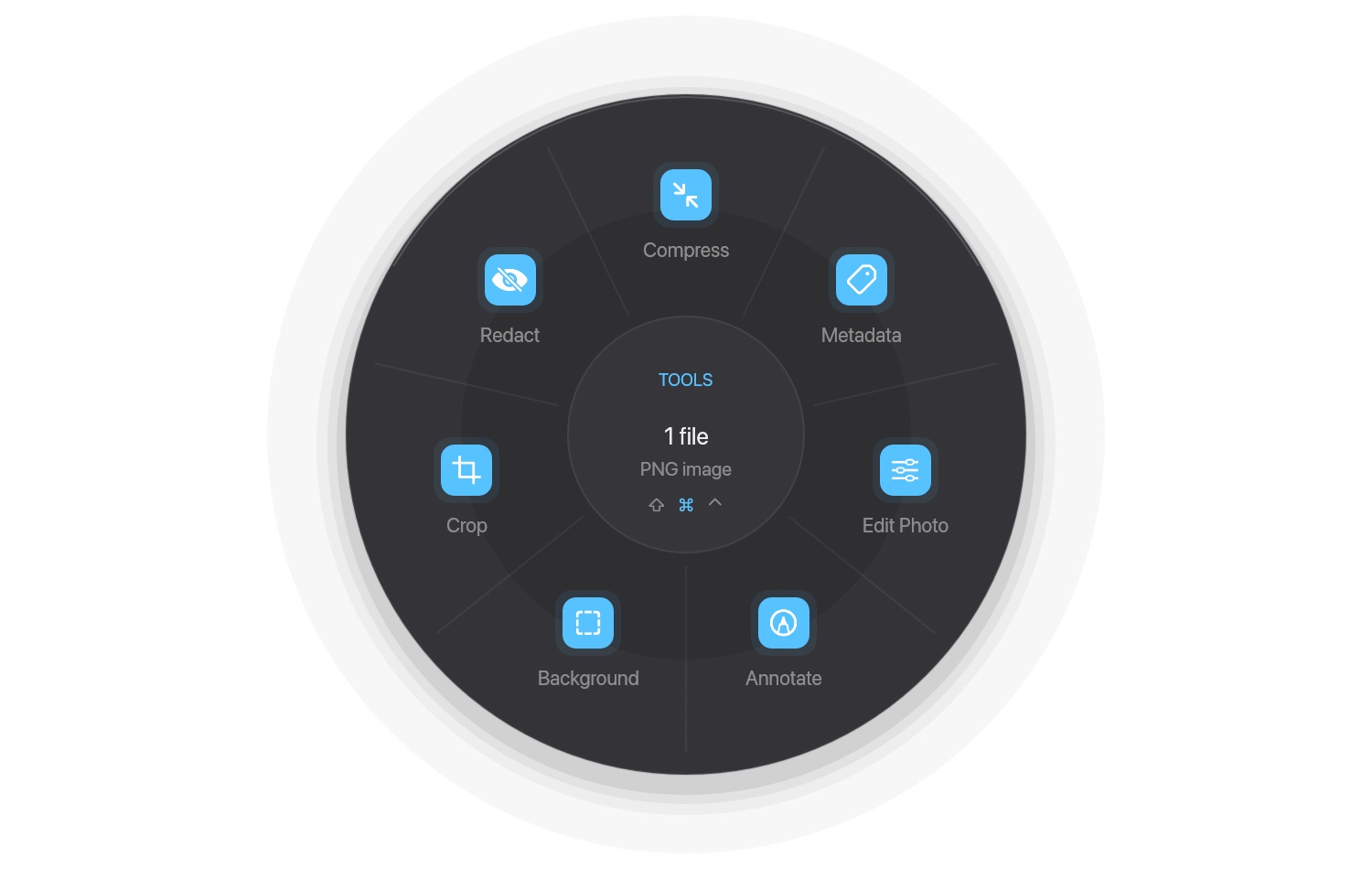
Tools wheel (dark)The Tools wheel for an image: each segment opens a window or runs a preset. -
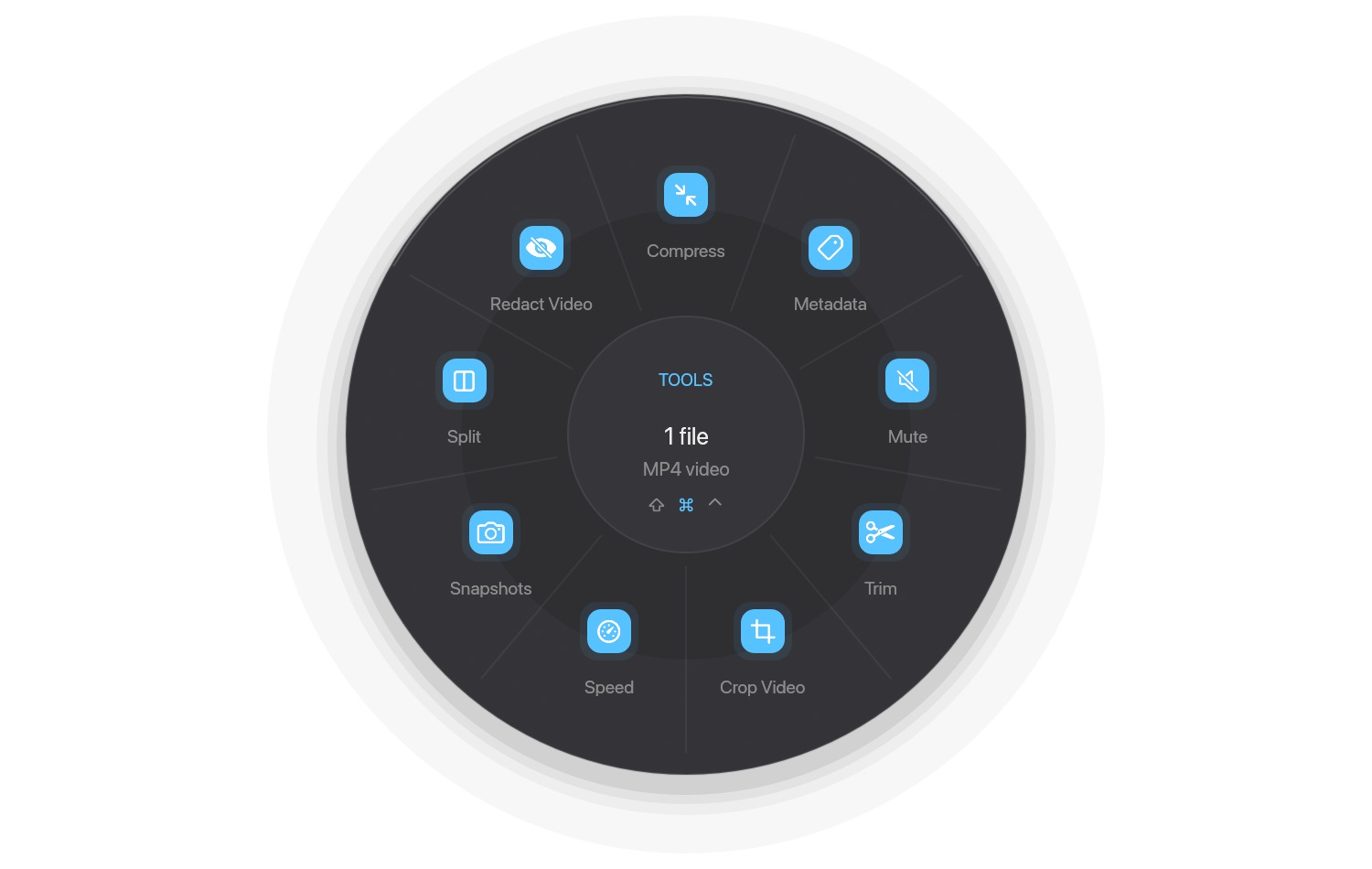
Tools wheel for a video (dark)The Tools wheel for a video has nine segments, each with its name under the icon. Long names are shortened to fit the ring. -
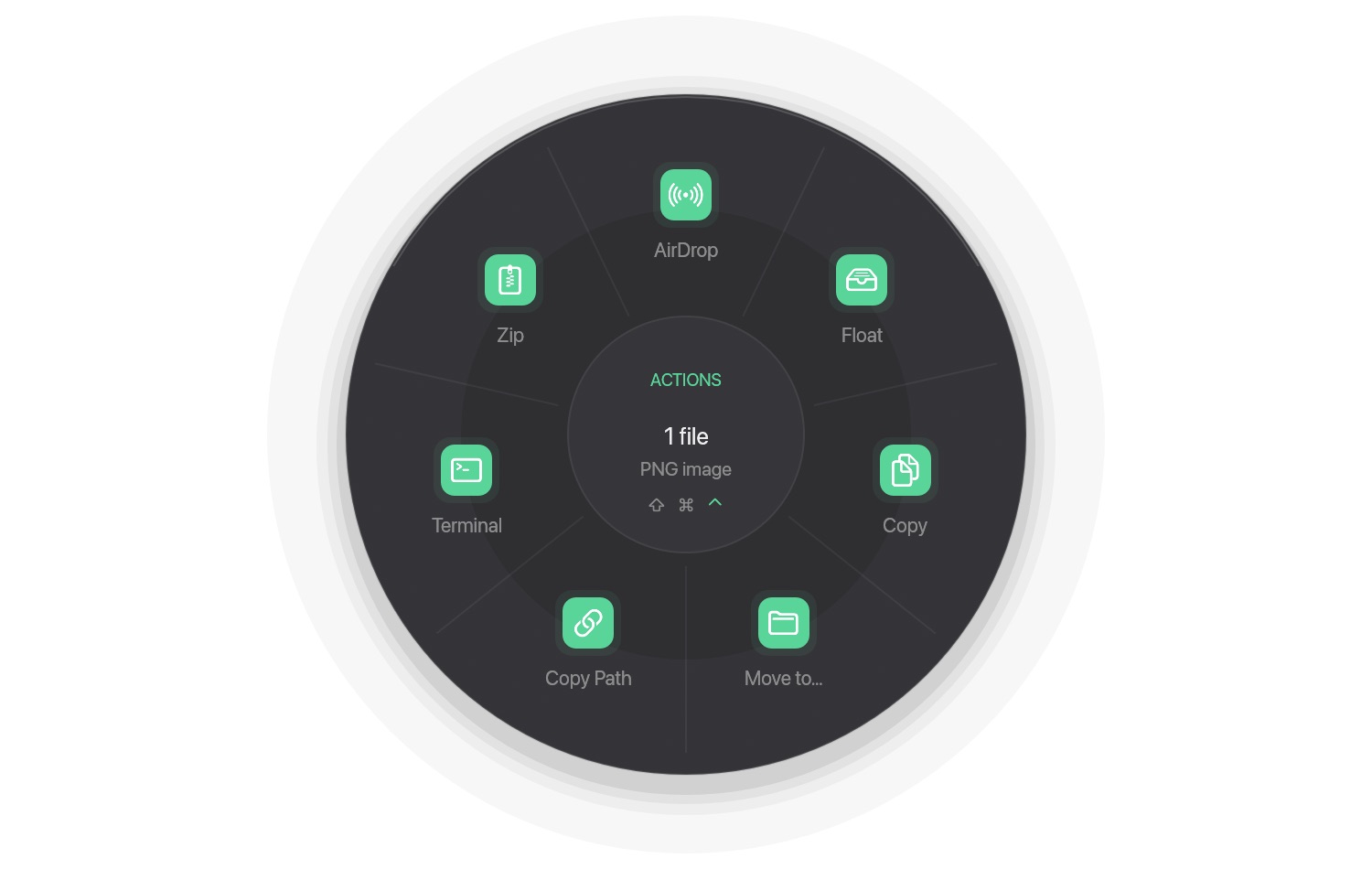
Actions wheel (dark)The Actions wheel: AirDrop, Float shelf, Copy, Move to, Copy Path, Terminal and Zip. -
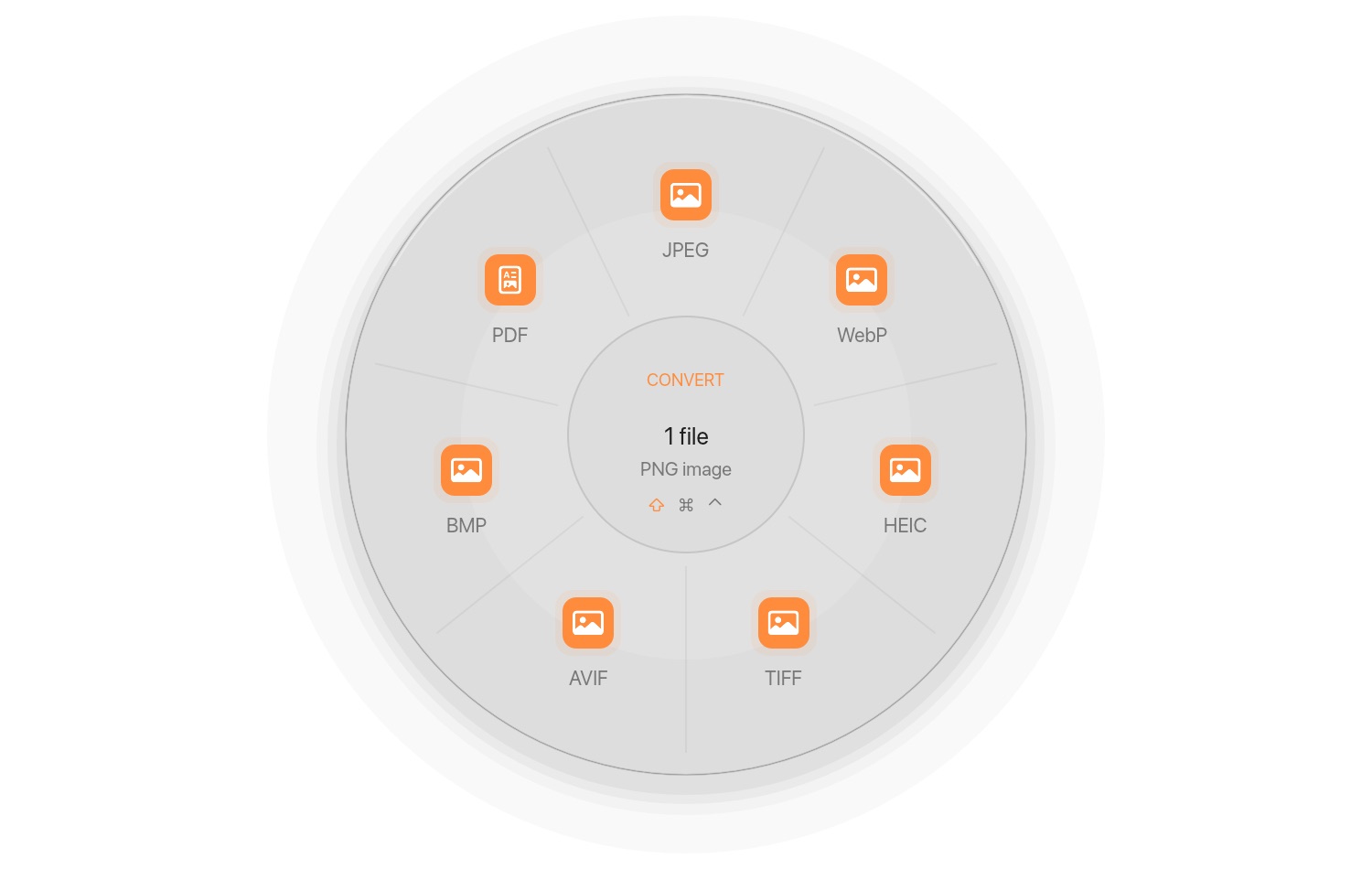
Convert wheel (light)The same Convert wheel in the light theme. -
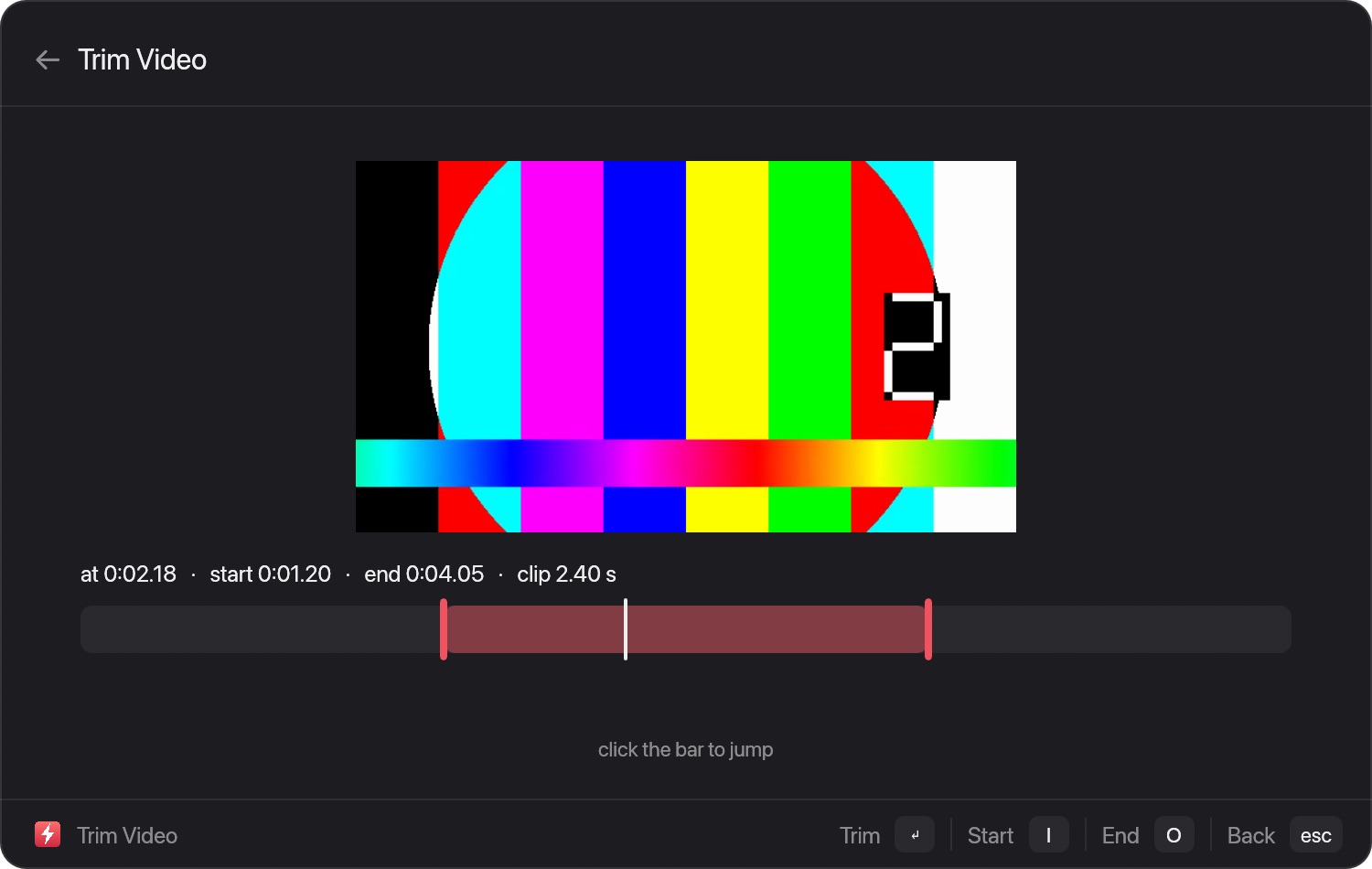
Trim VideoTrim Video: a preview frame, start and end marks on a timeline, and the clip length. -
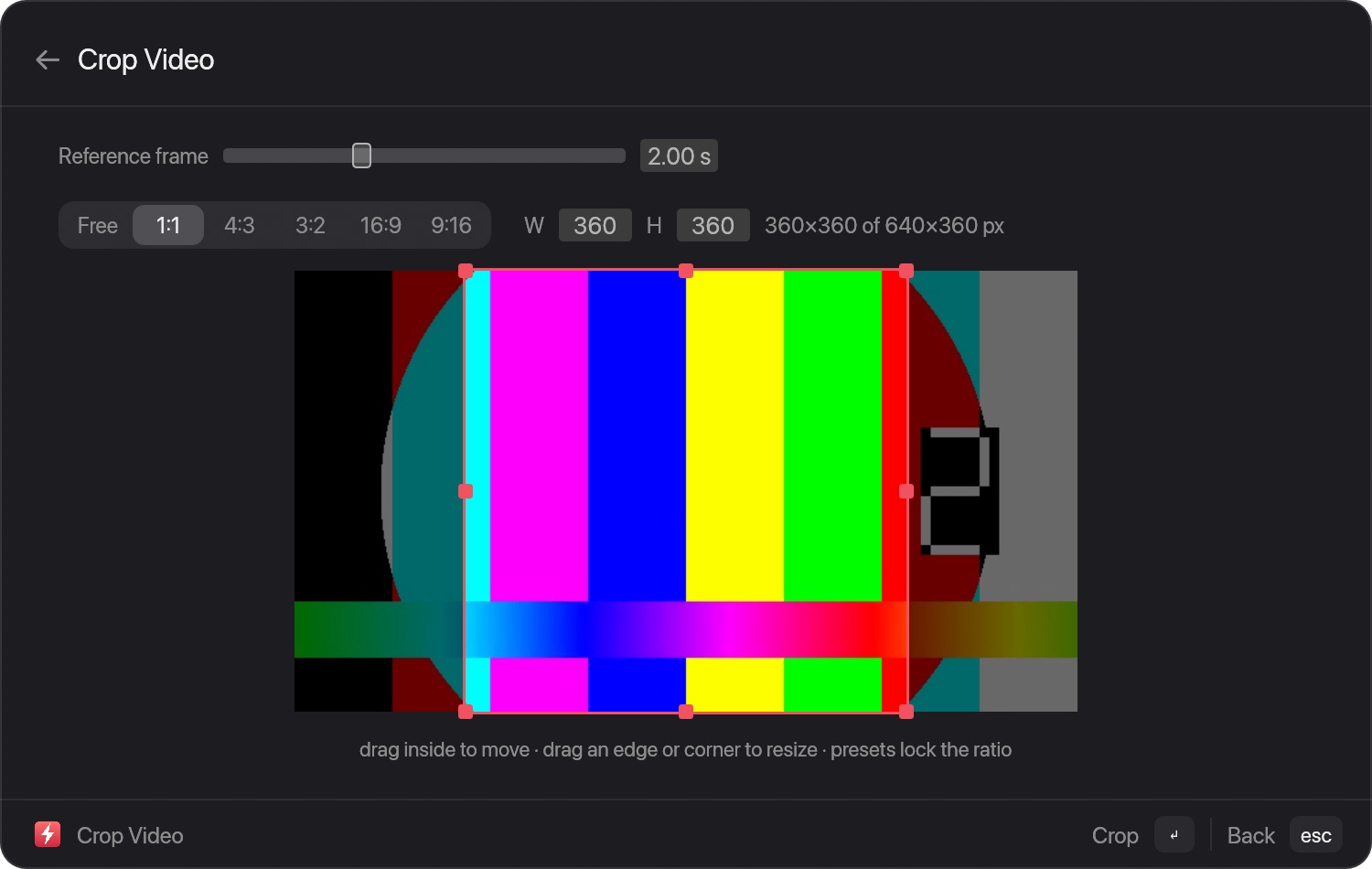
Crop VideoCrop Video: a crop box over a preview frame, with ratio presets and exact width and height. -
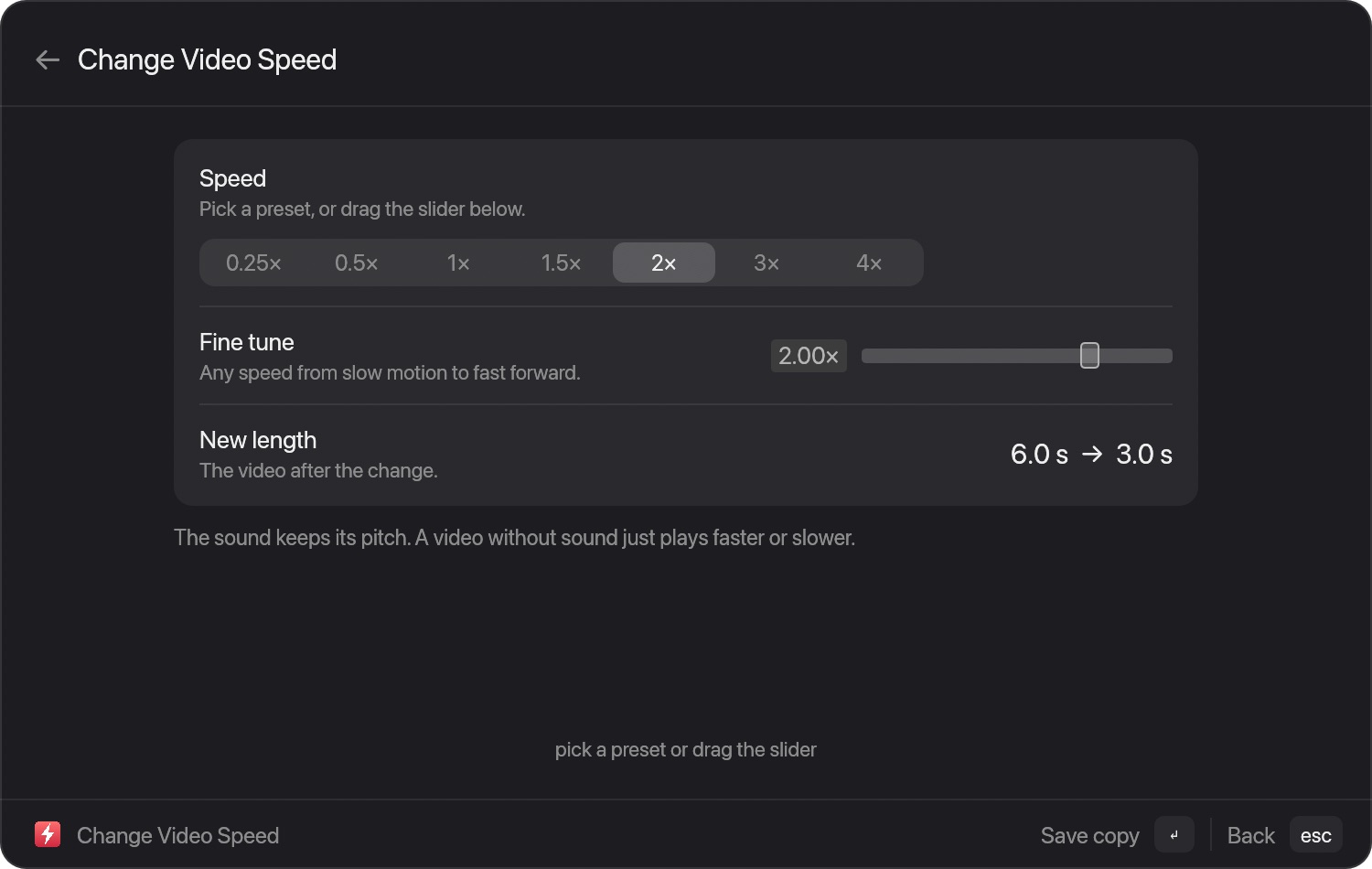
Change Video SpeedChange Video Speed: presets or a slider, with the new length shown. -
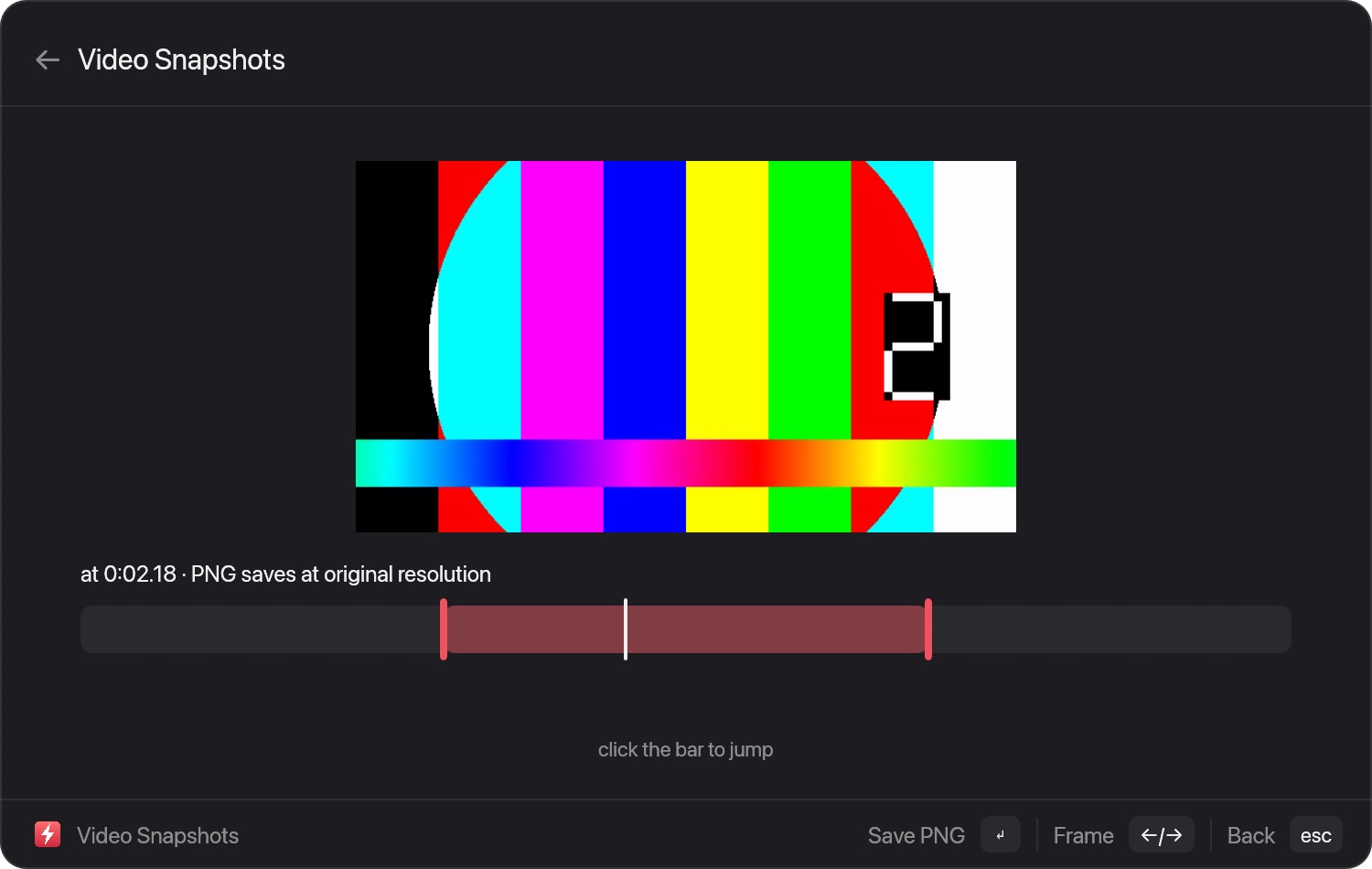
Video SnapshotsVideo Snapshots: step to a frame and save it as a full-resolution PNG. -
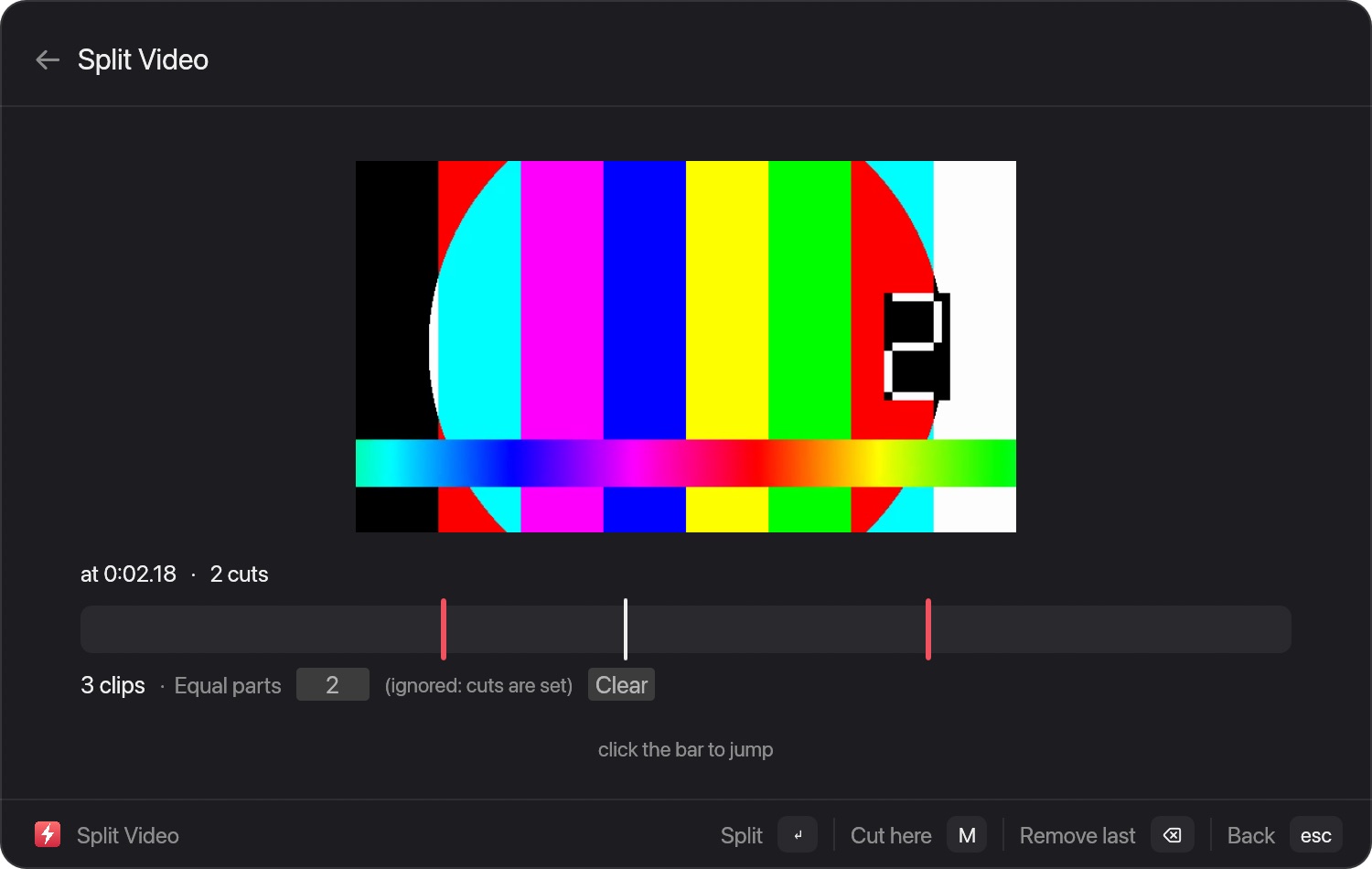
Split VideoSplit Video: cut marks on a timeline, or equal parts when no cuts are set. -
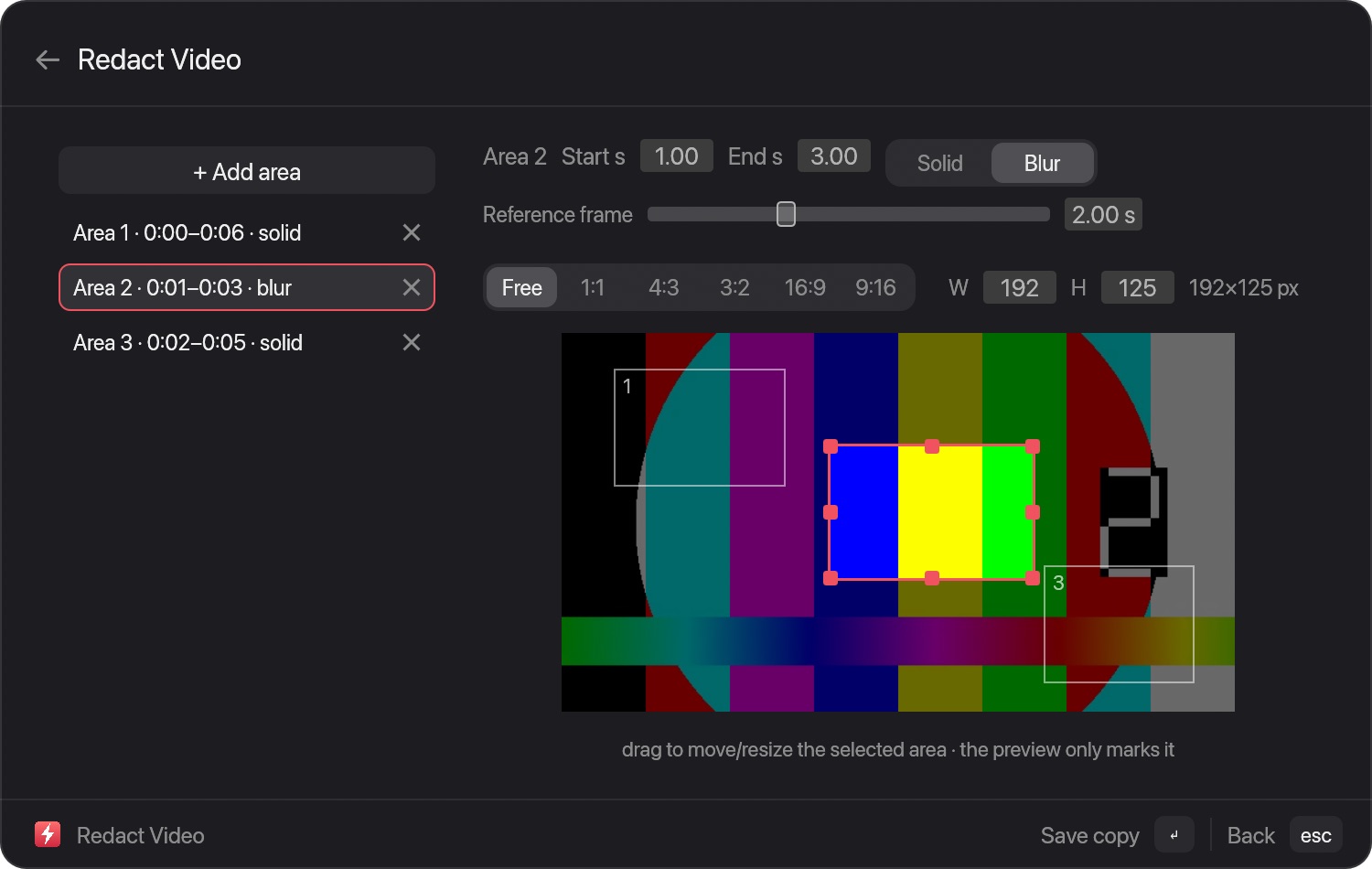
Redact VideoRedact Video: several areas, each with its own start and end time and a solid or blur cover. The preview only marks the areas; the cover is applied when the copy is saved. -
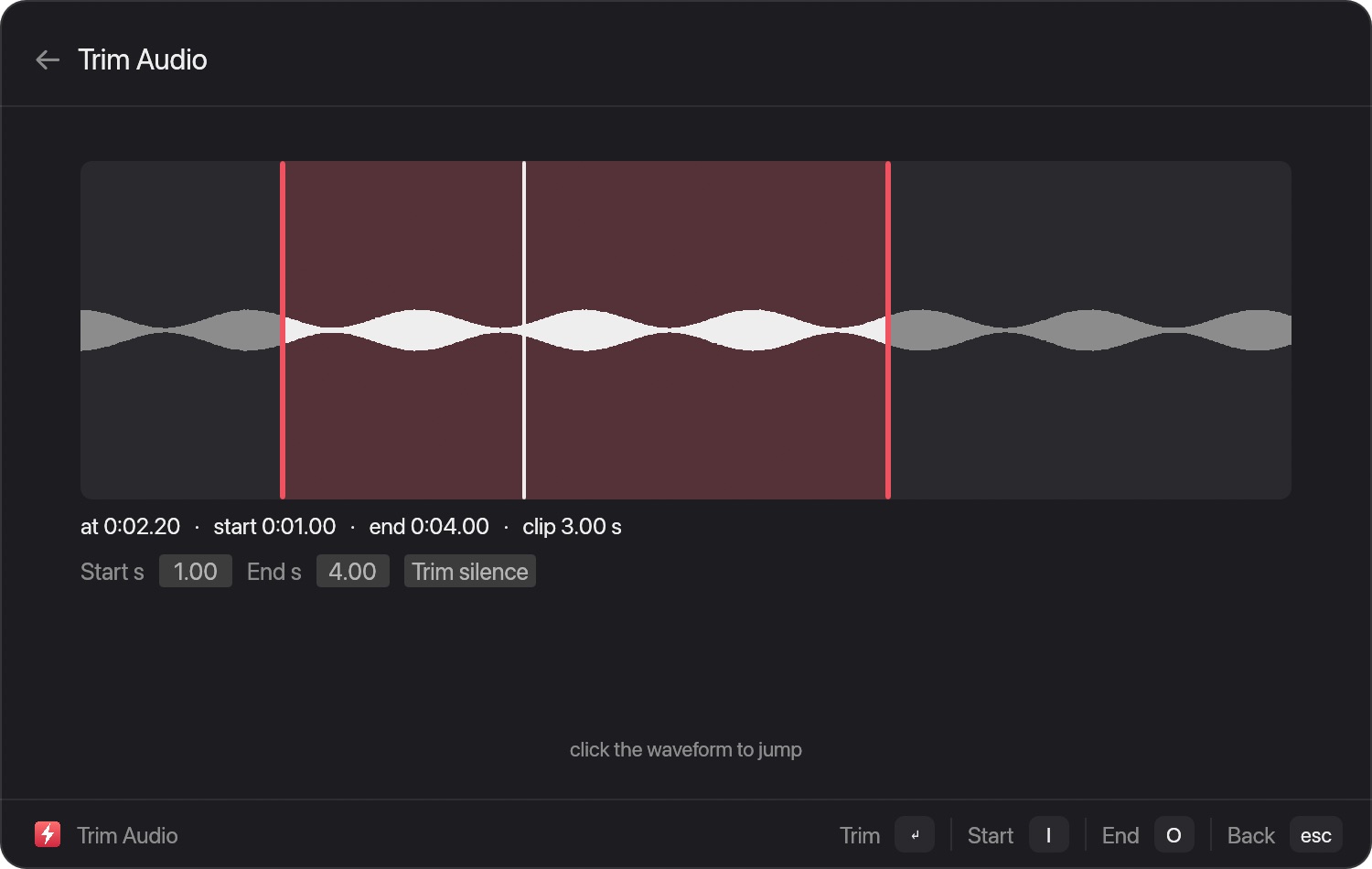
Trim AudioTrim Audio: a waveform with a selected range, typed start and end times, and a Trim silence button. -
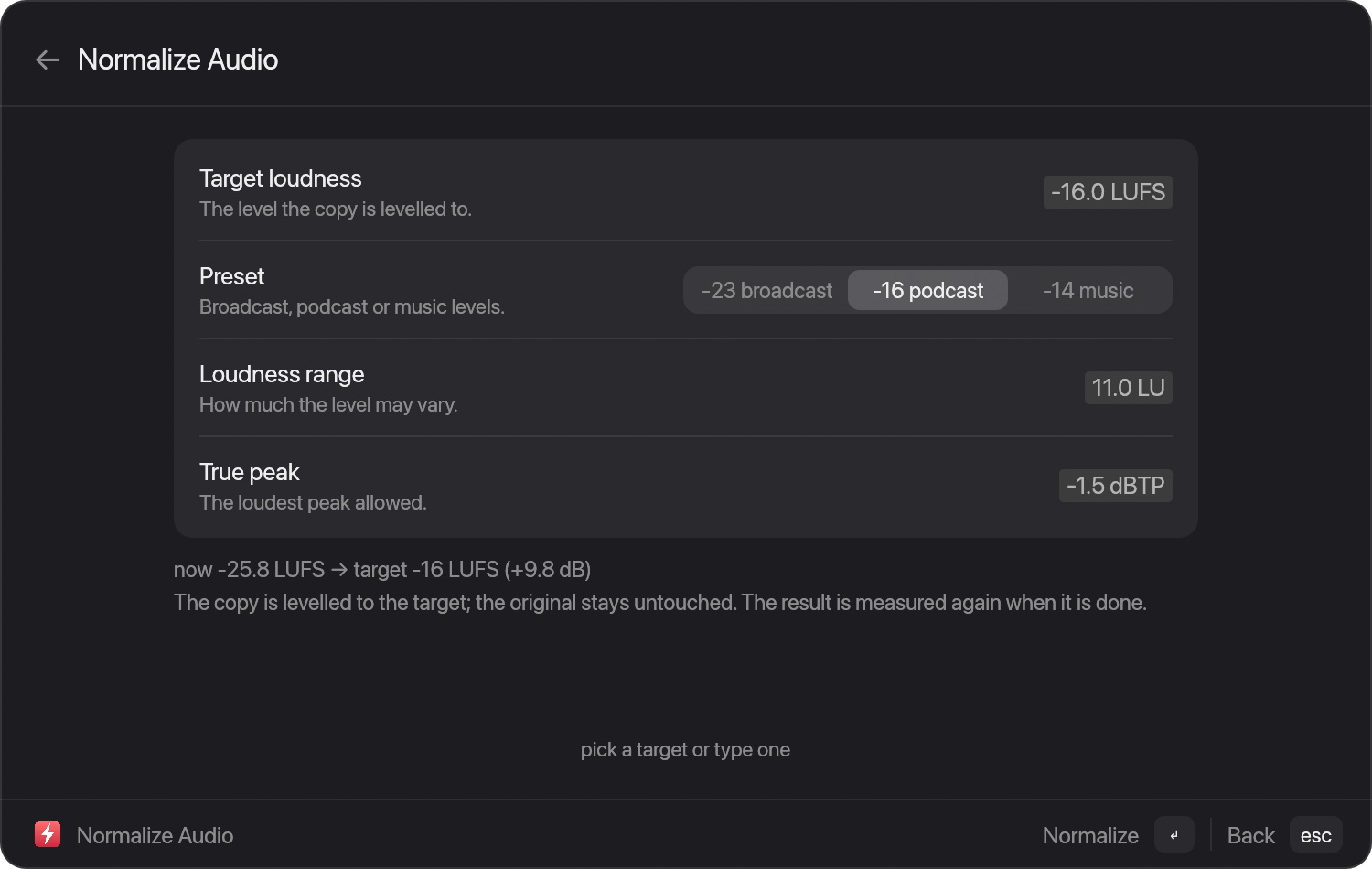
Normalize AudioNormalize Audio: measured loudness, target presets for broadcast, podcast and music, and range and peak fields. -
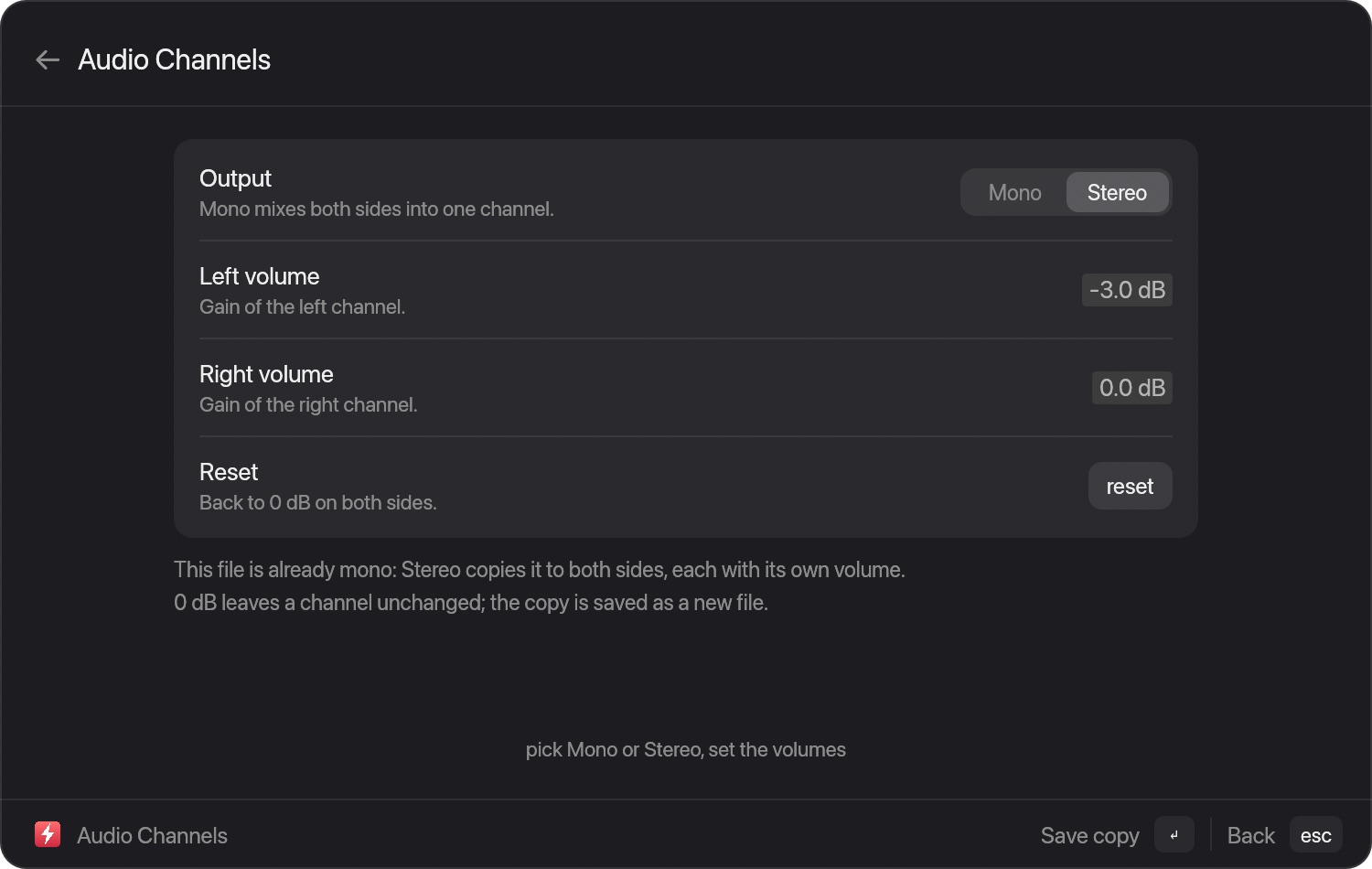
Audio ChannelsAudio Channels: Mono or Stereo, with a volume in dB for each side. -
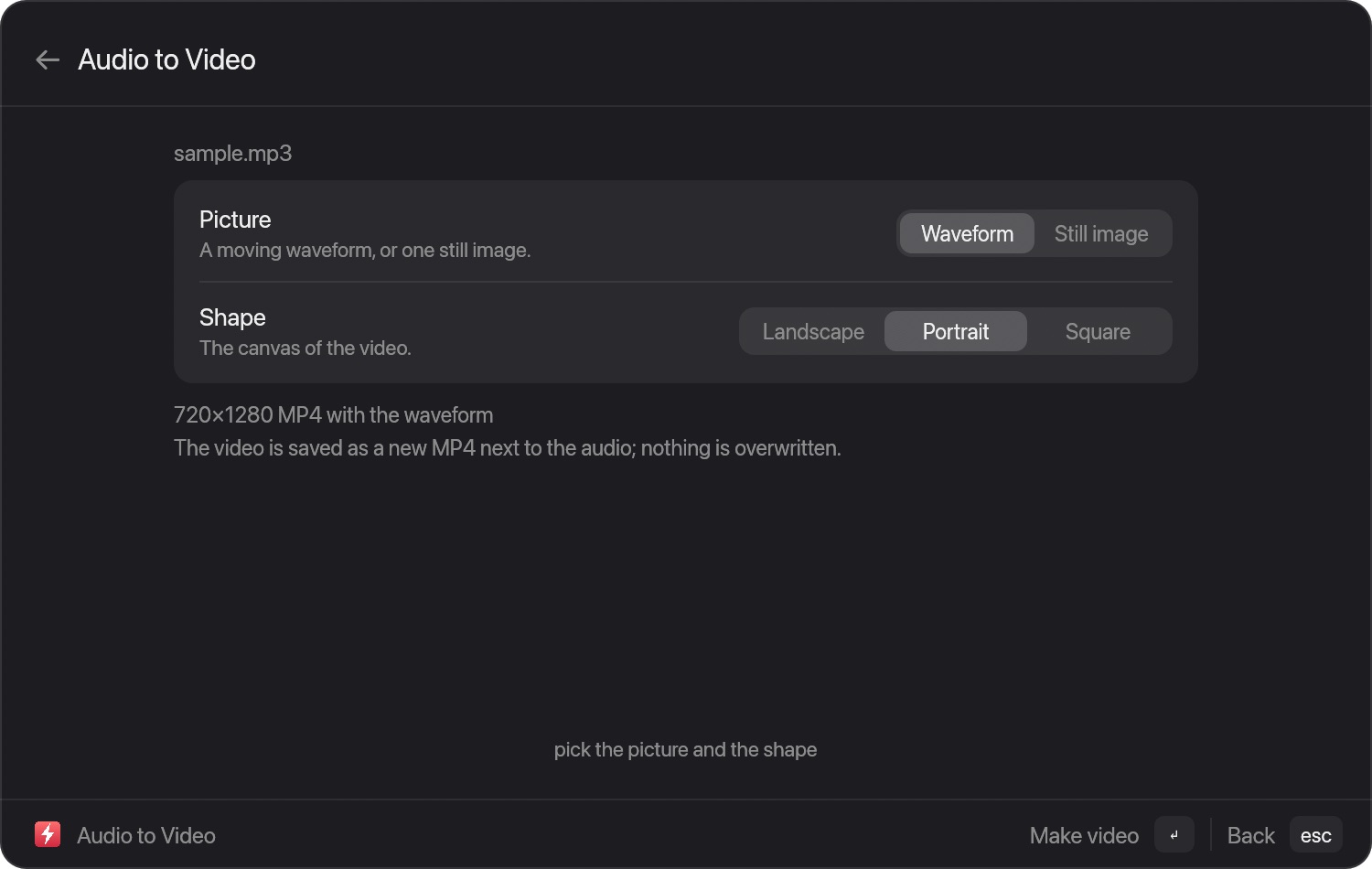
Audio to VideoAudio to Video: a moving waveform or one still image on a landscape, portrait or square canvas. The window shows the chosen settings, not a preview of the video. -
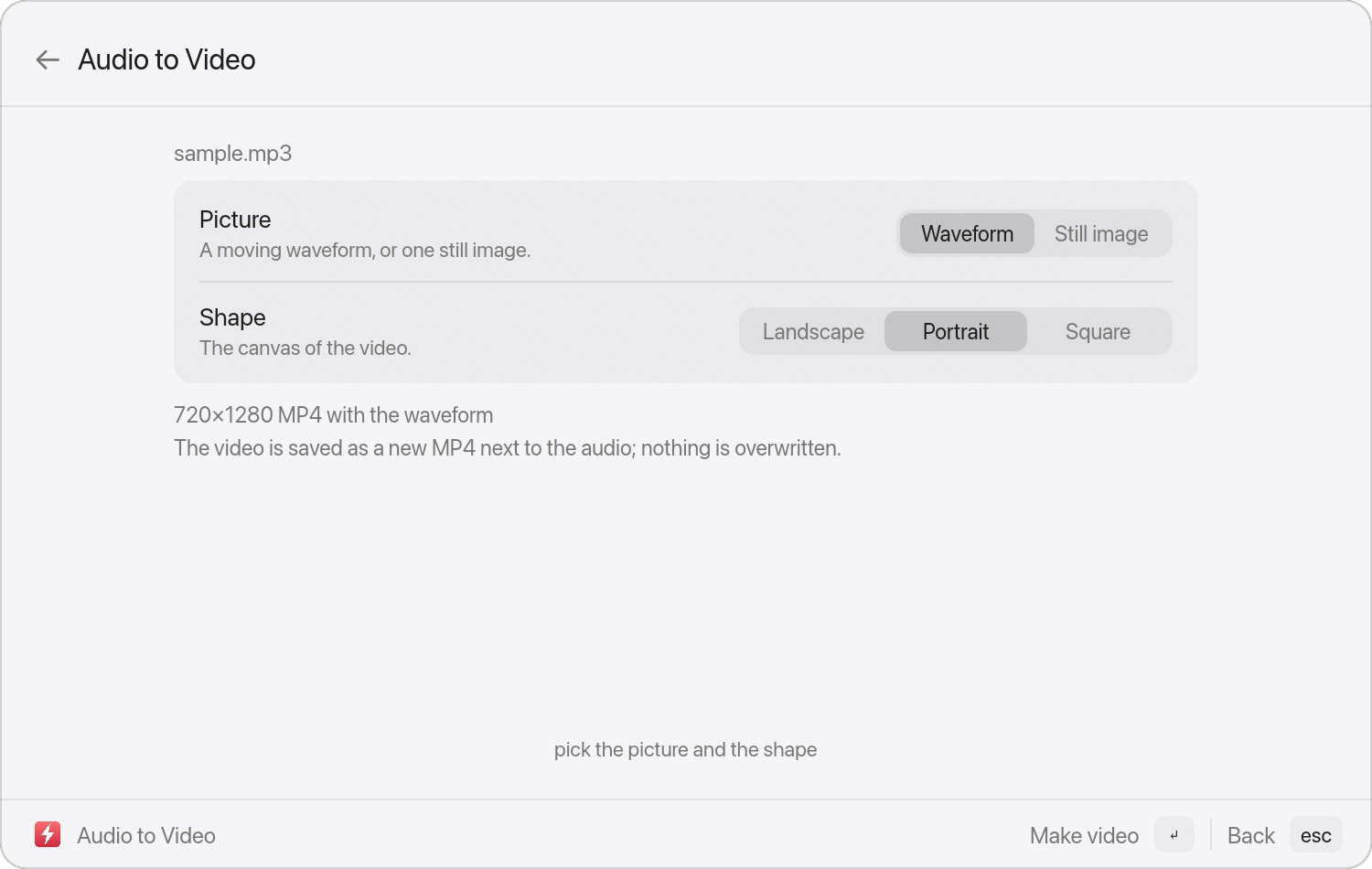
Audio to Video (light)The same window in the light theme, to show that the grouped cards and the footer keys read in both themes. -
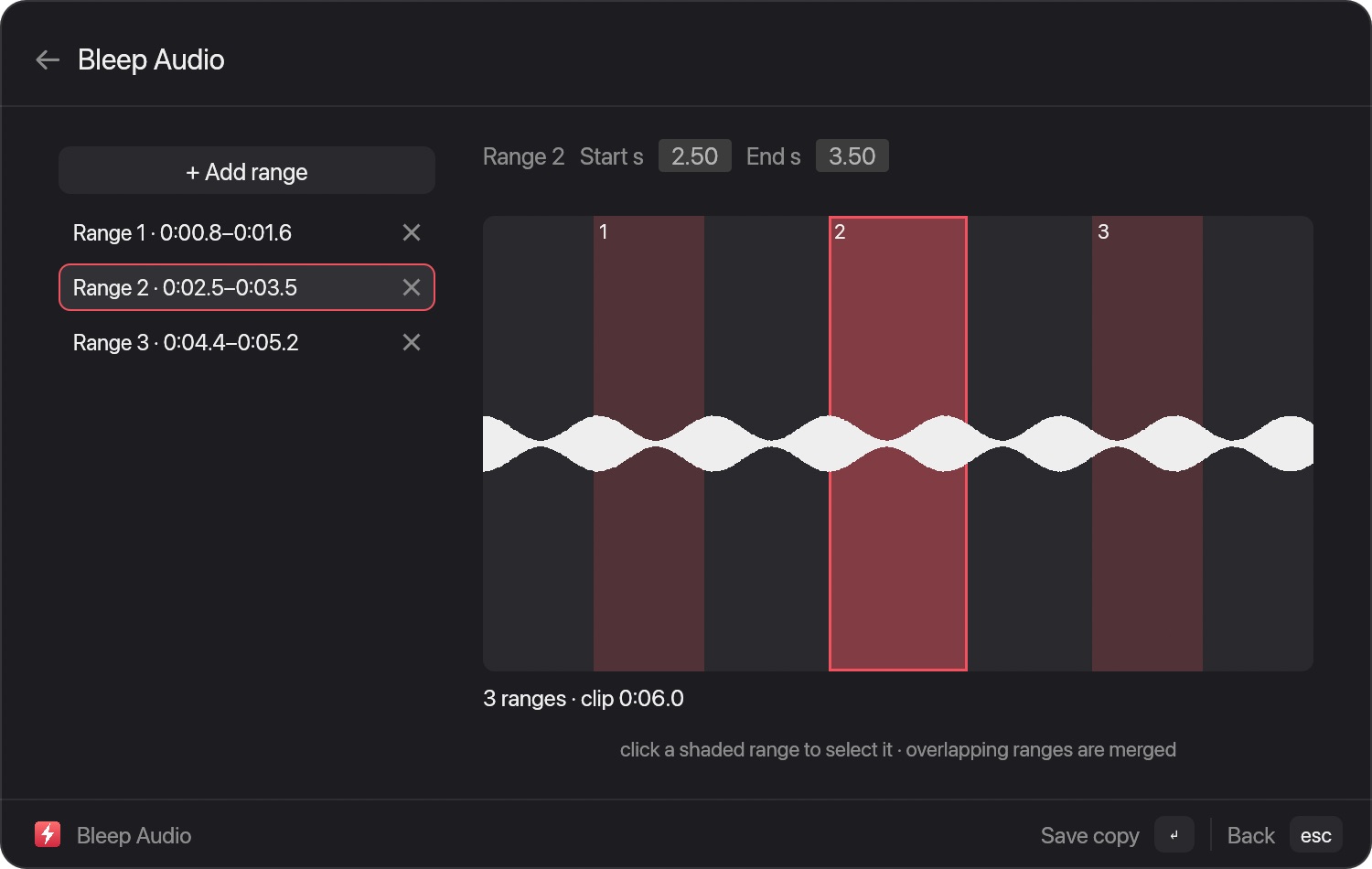
Bleep AudioBleep Audio: ranges marked on the waveform and listed beside it, with typed start and end times. Overlapping ranges are merged; a copy is saved. -
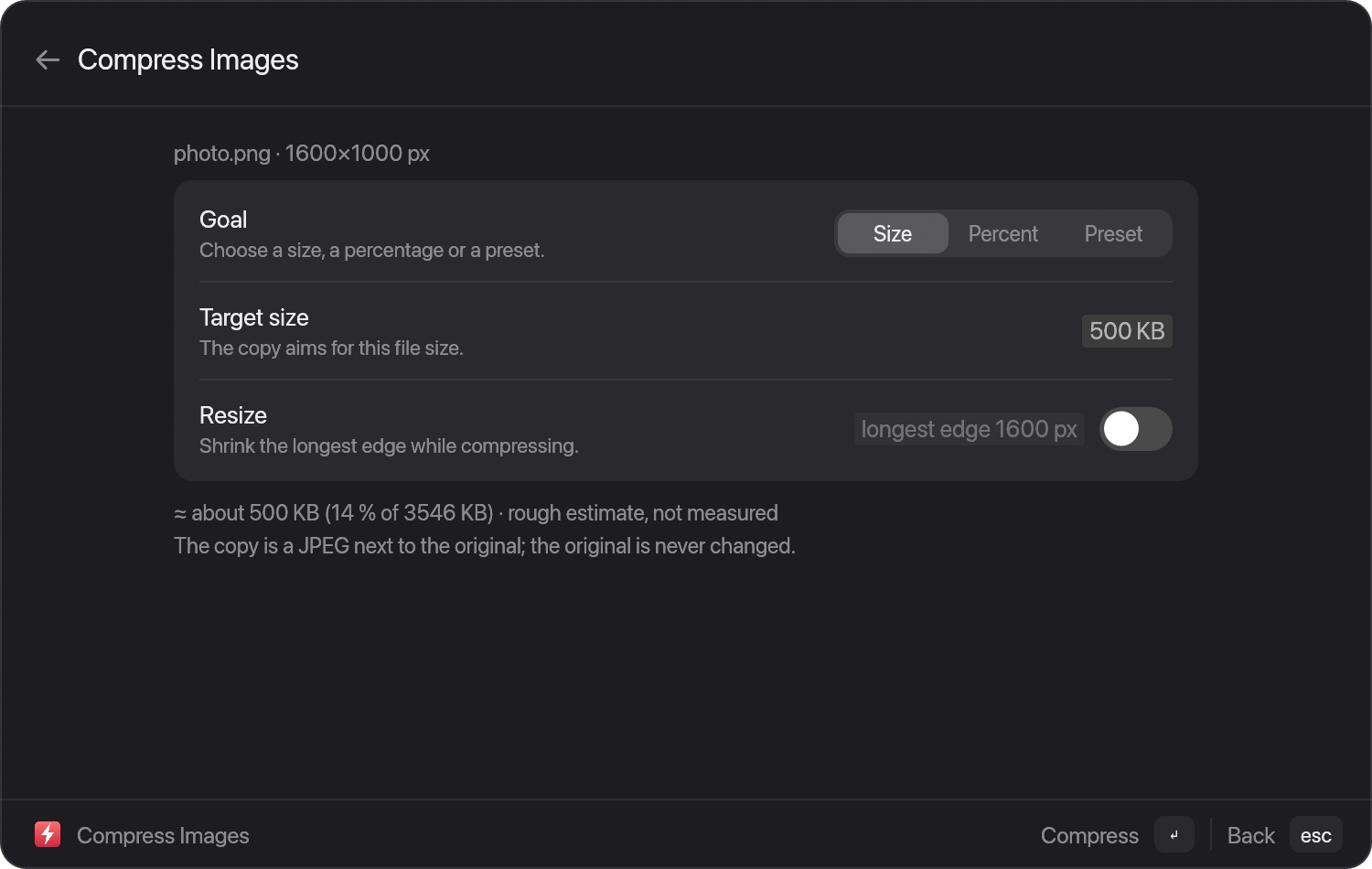
Compress ImagesCompress Images: aim for a size, a percentage or a preset. The size shown is a rough estimate, not a measurement. -
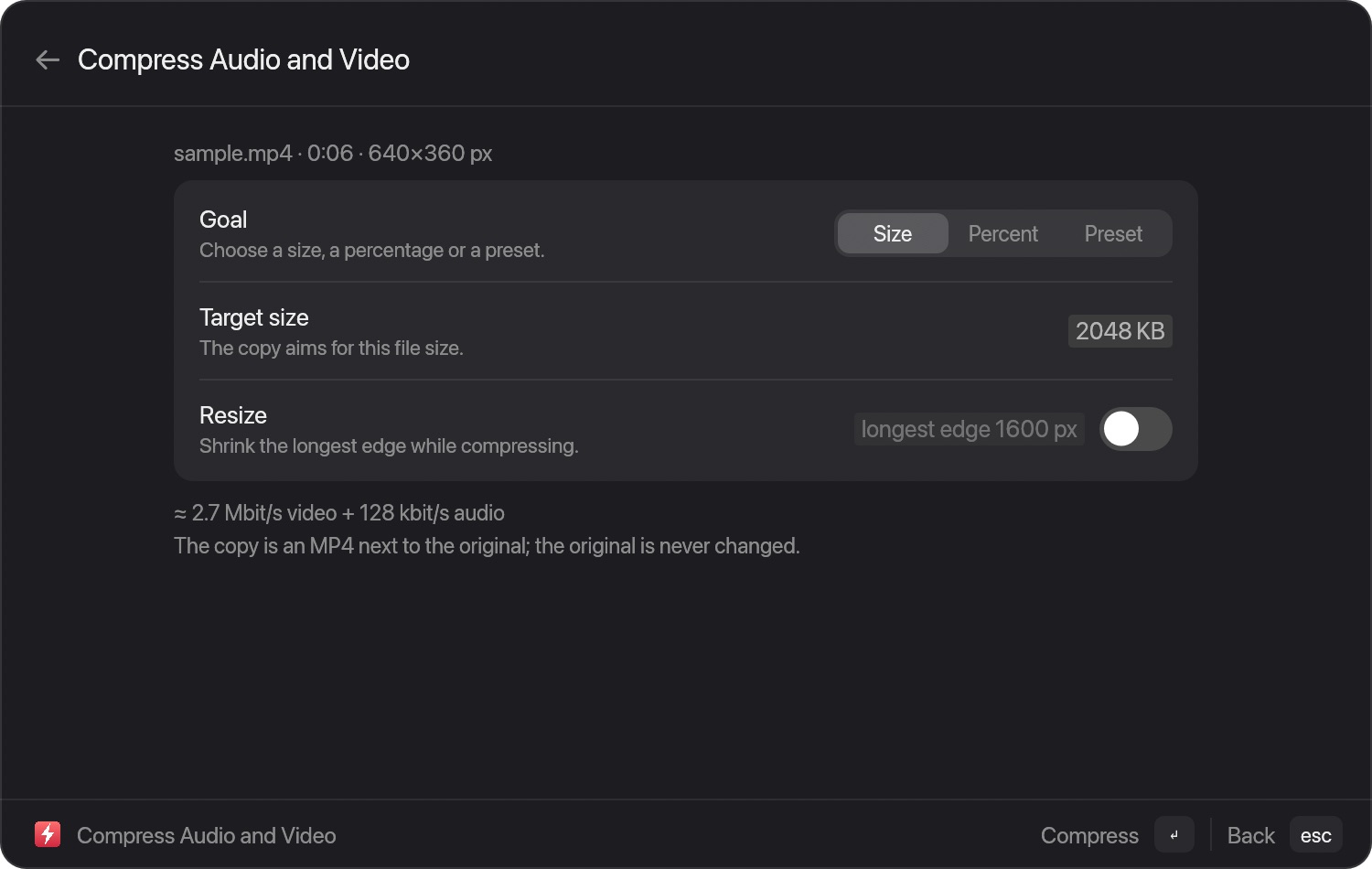
Compress Audio and VideoCompress Audio and Video: the same goals for media files, with the bitrates a target would use. -
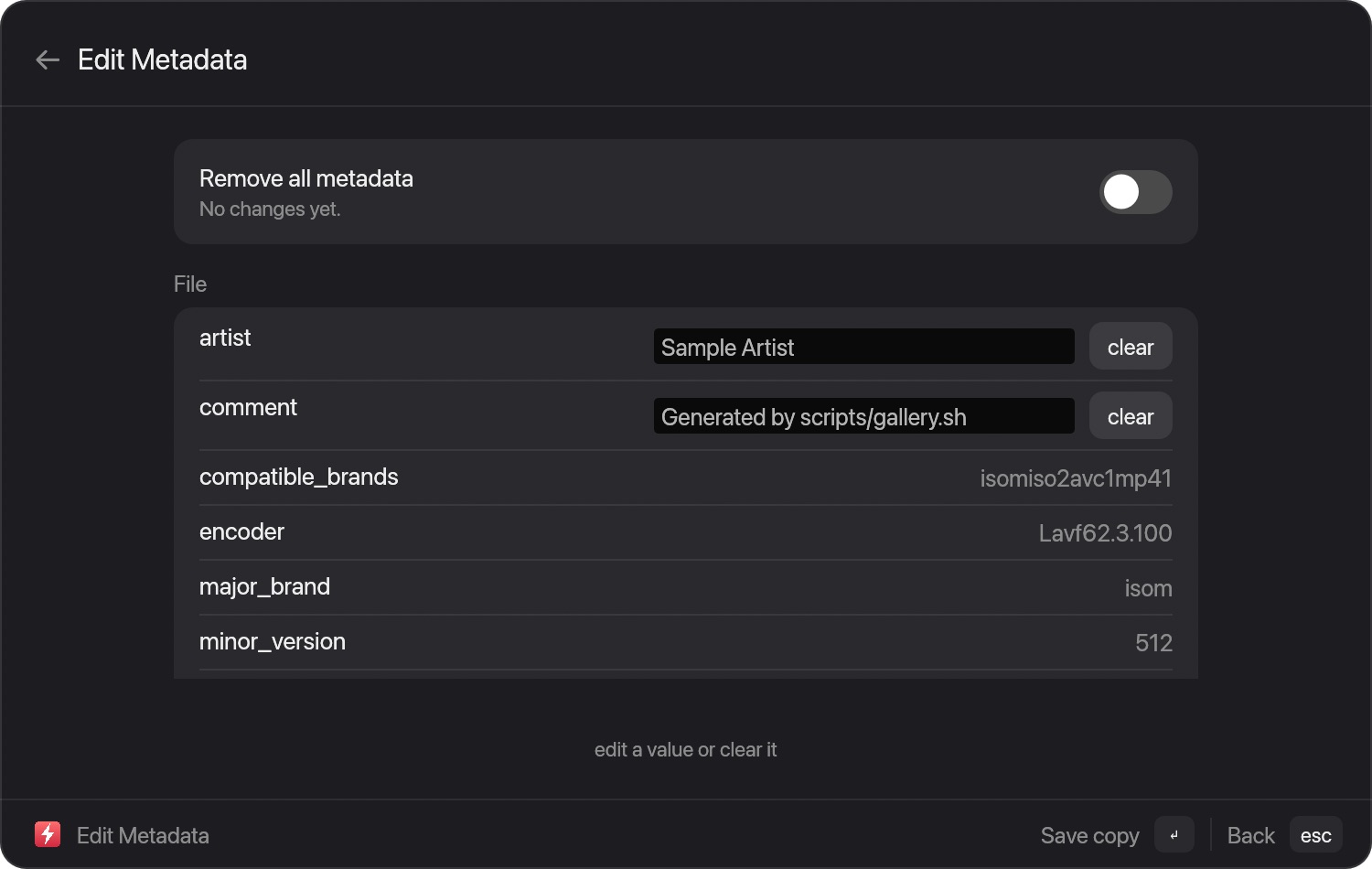
Edit MetadataEdit Metadata: tags read from the file, editable or clearable, or remove them all. A copy is saved. -
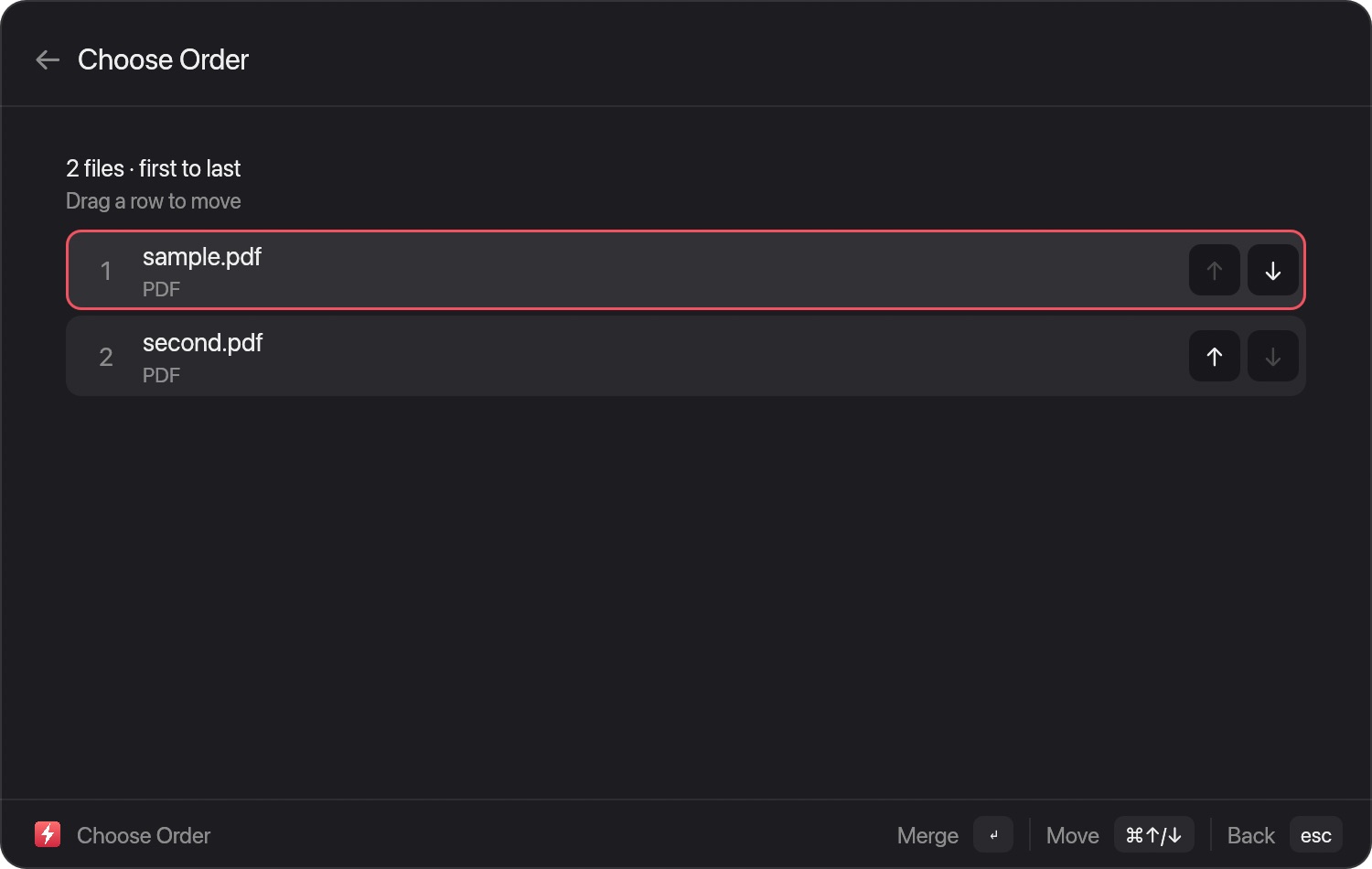
Choose OrderChoose Order: set the order of files before merging PDFs, joining videos or merging audio. -
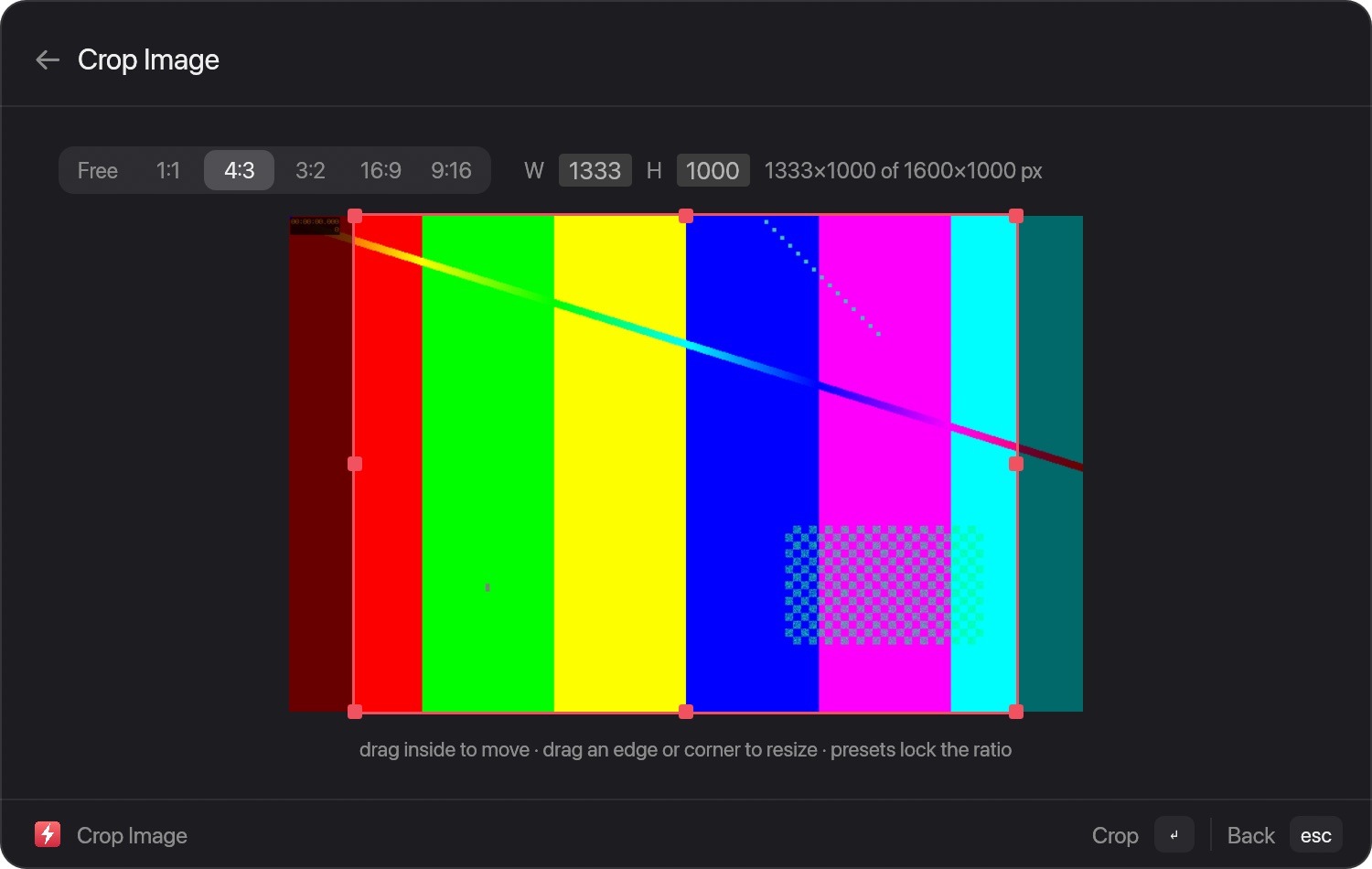
Crop ImageCrop Image: a crop box with ratio presets and exact width and height. -
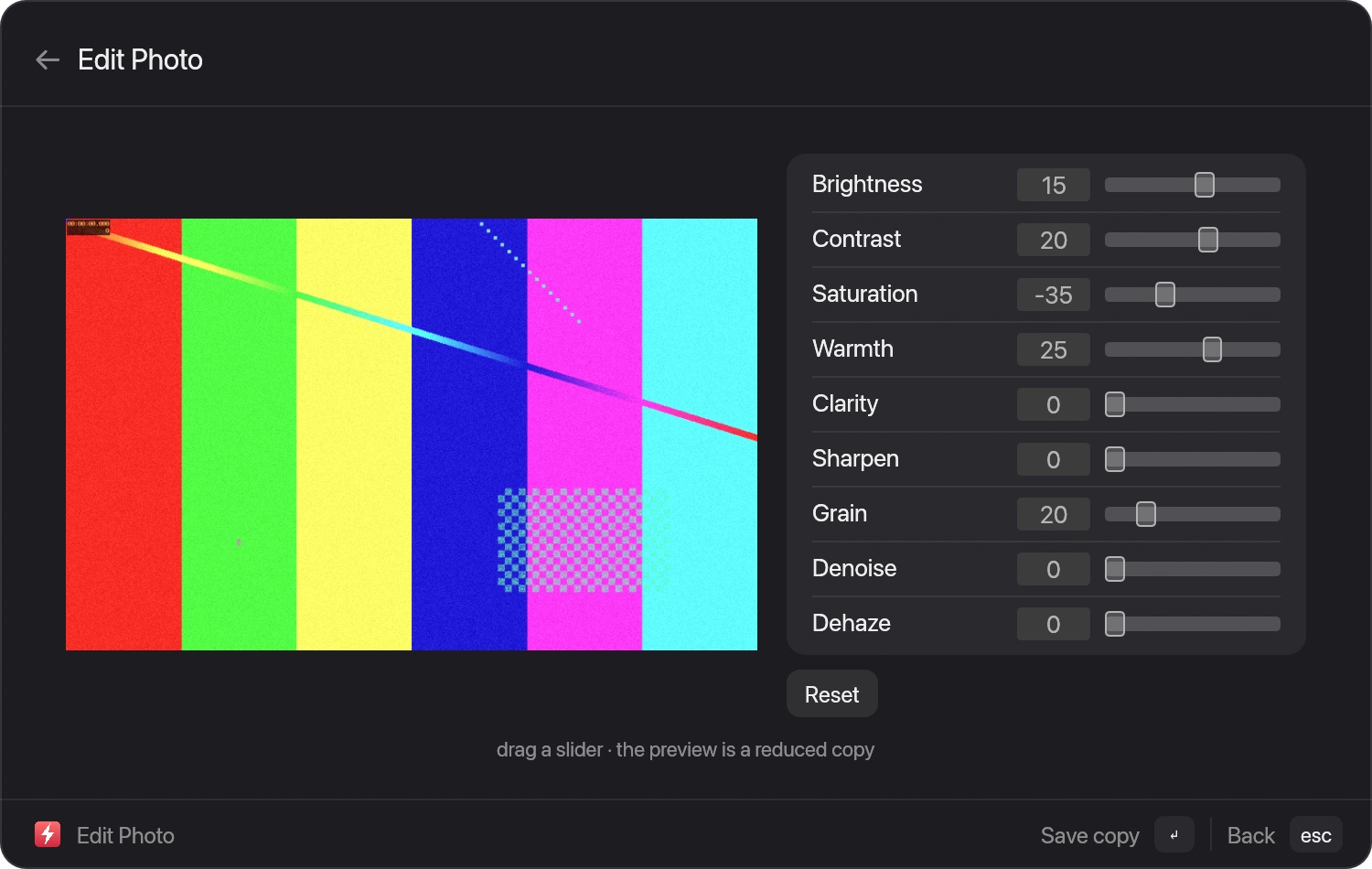
Edit PhotoEdit Photo: nine sliders and a preview on a reduced copy; saving writes a full-size copy. -
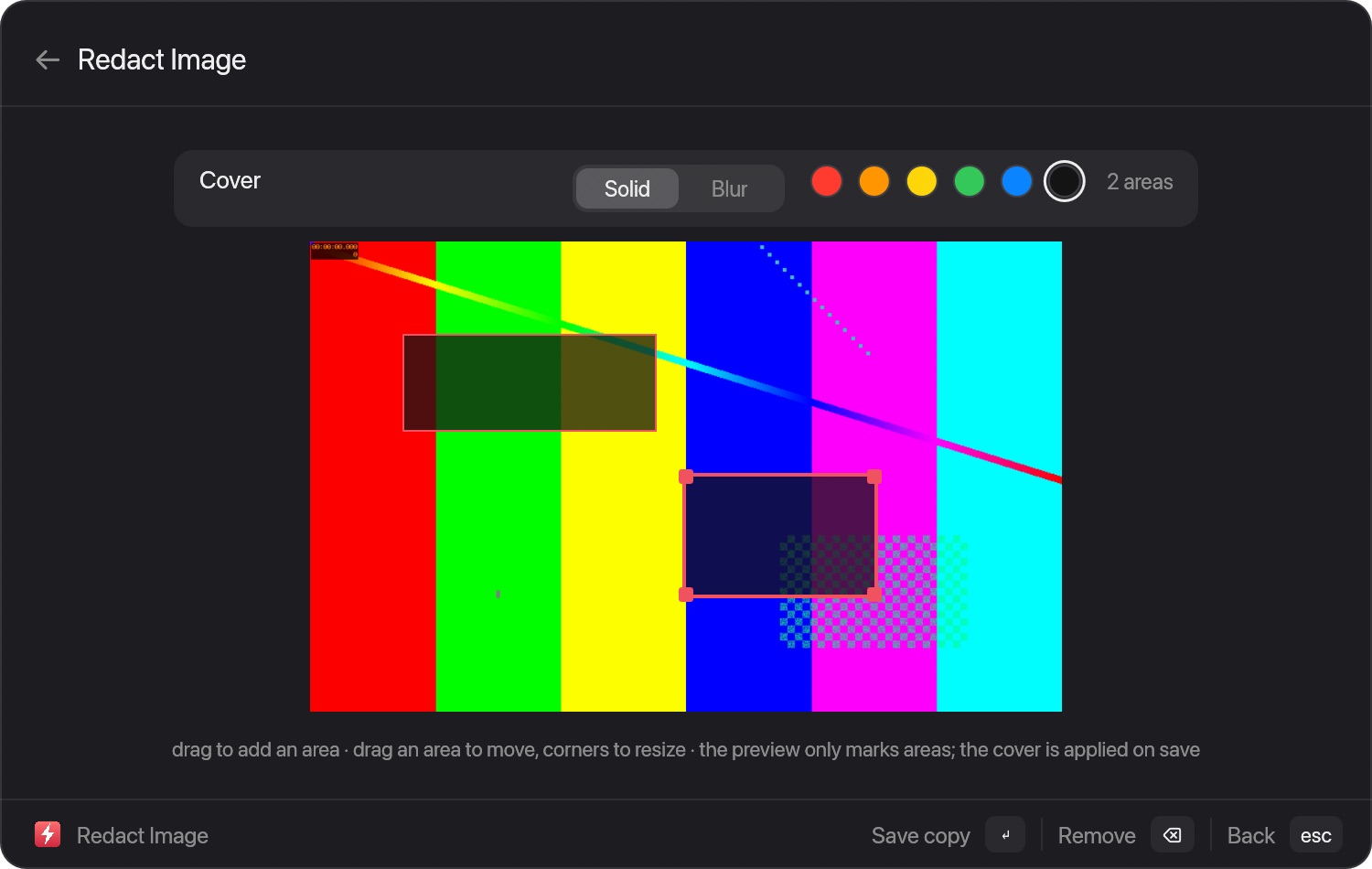
Redact ImageRedact Image: cover areas on the picture, solid or blur, applied when the copy is saved. -
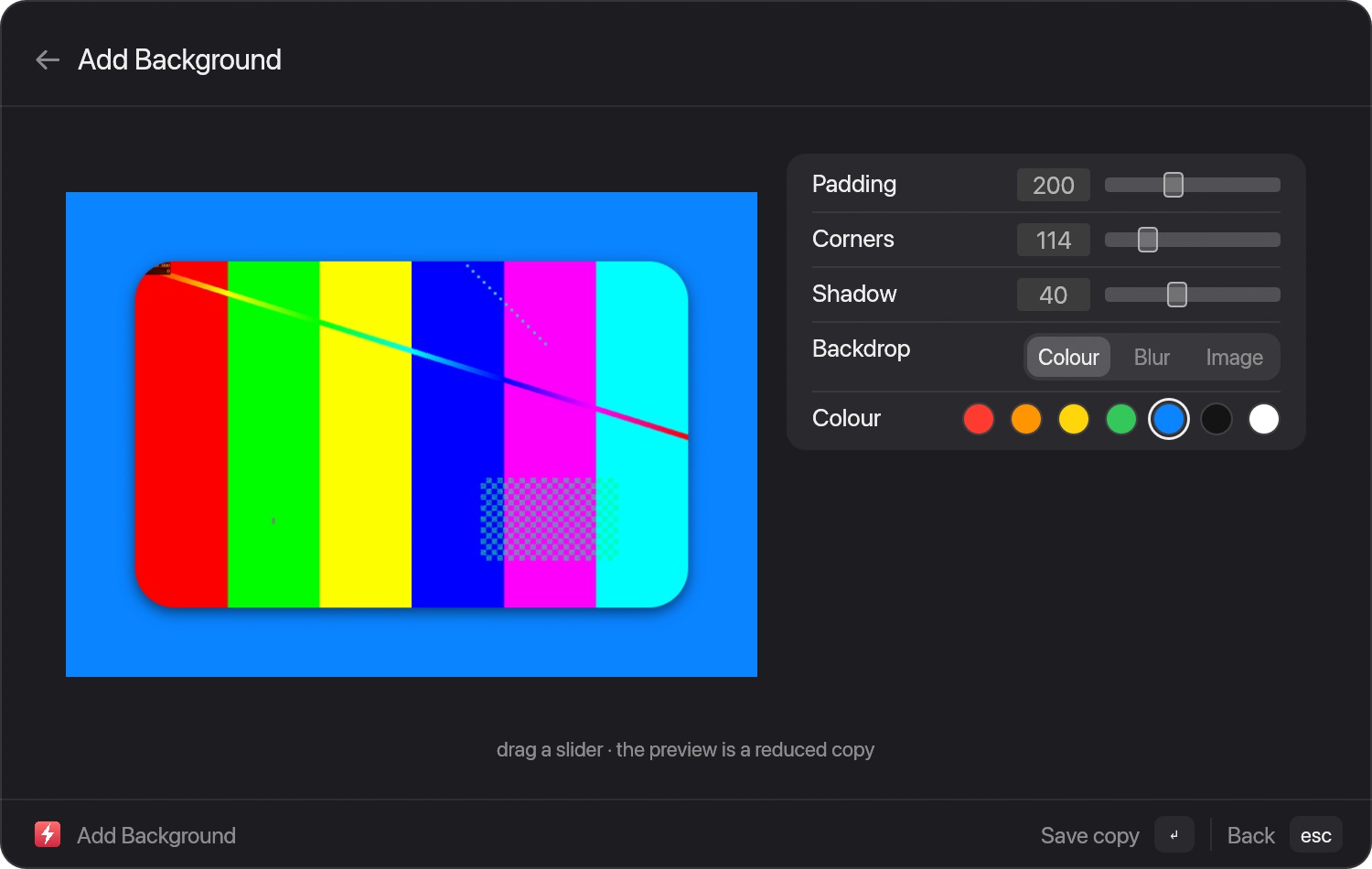
Add BackgroundAdd Background: padding, corner radius and shadow on a colour or blurred backdrop. -
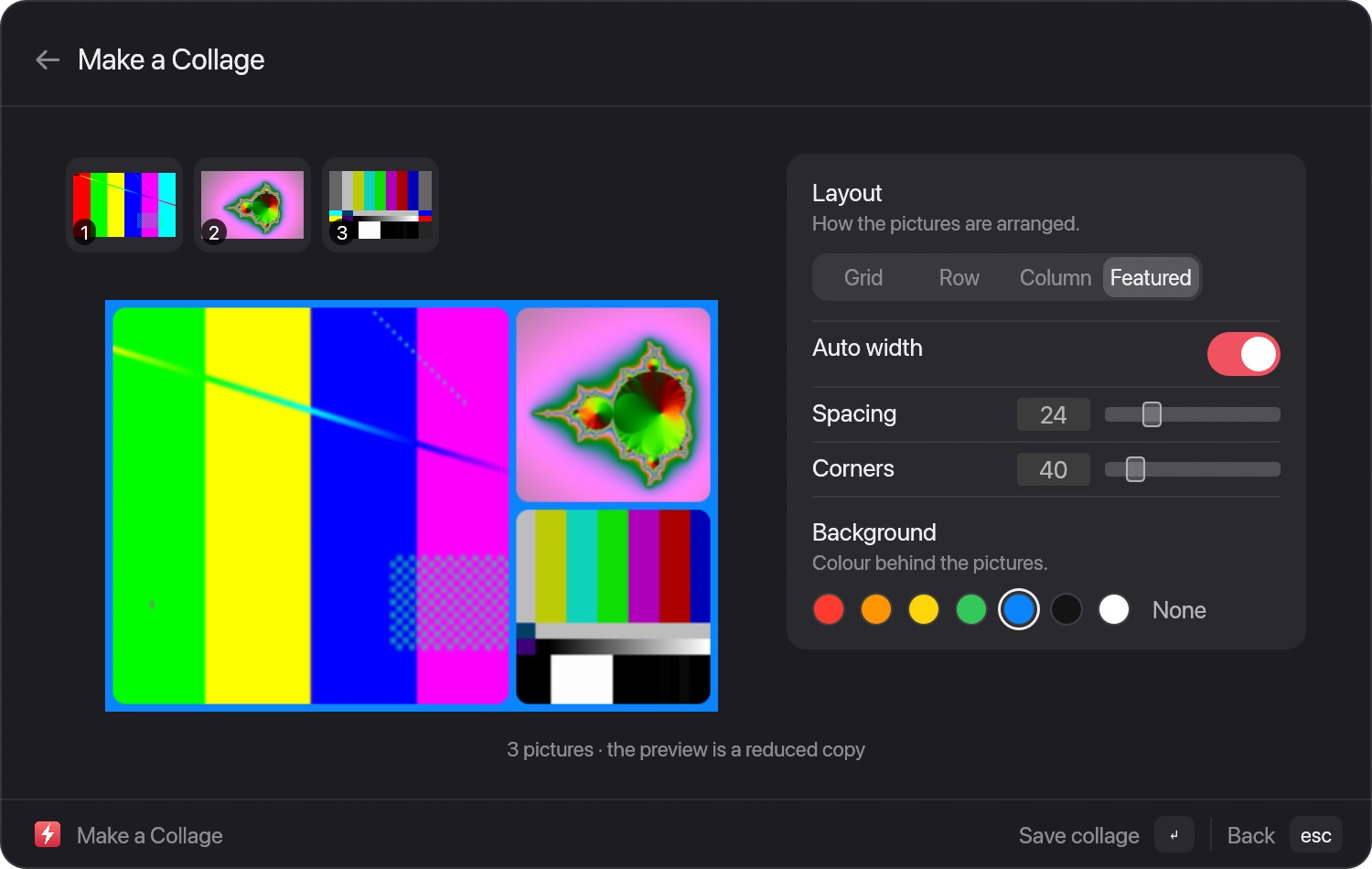
Make a CollageMake a Collage: Grid, Row, Column or Featured layouts with spacing, corners and a background colour. -
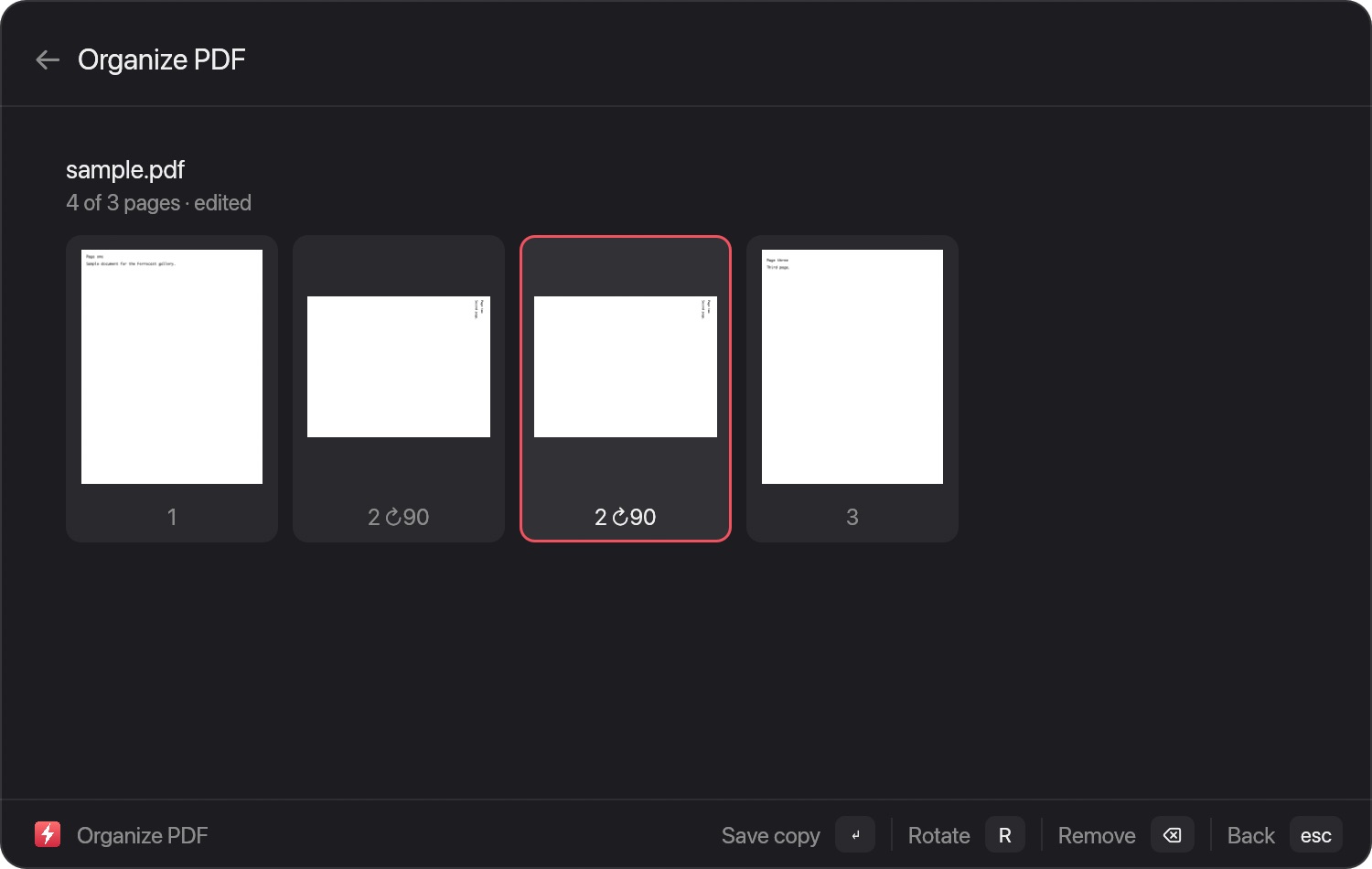
Organize PDFOrganize PDF: page thumbnails you can rotate, duplicate, remove and reorder. Here page 2 was rotated and duplicated. -
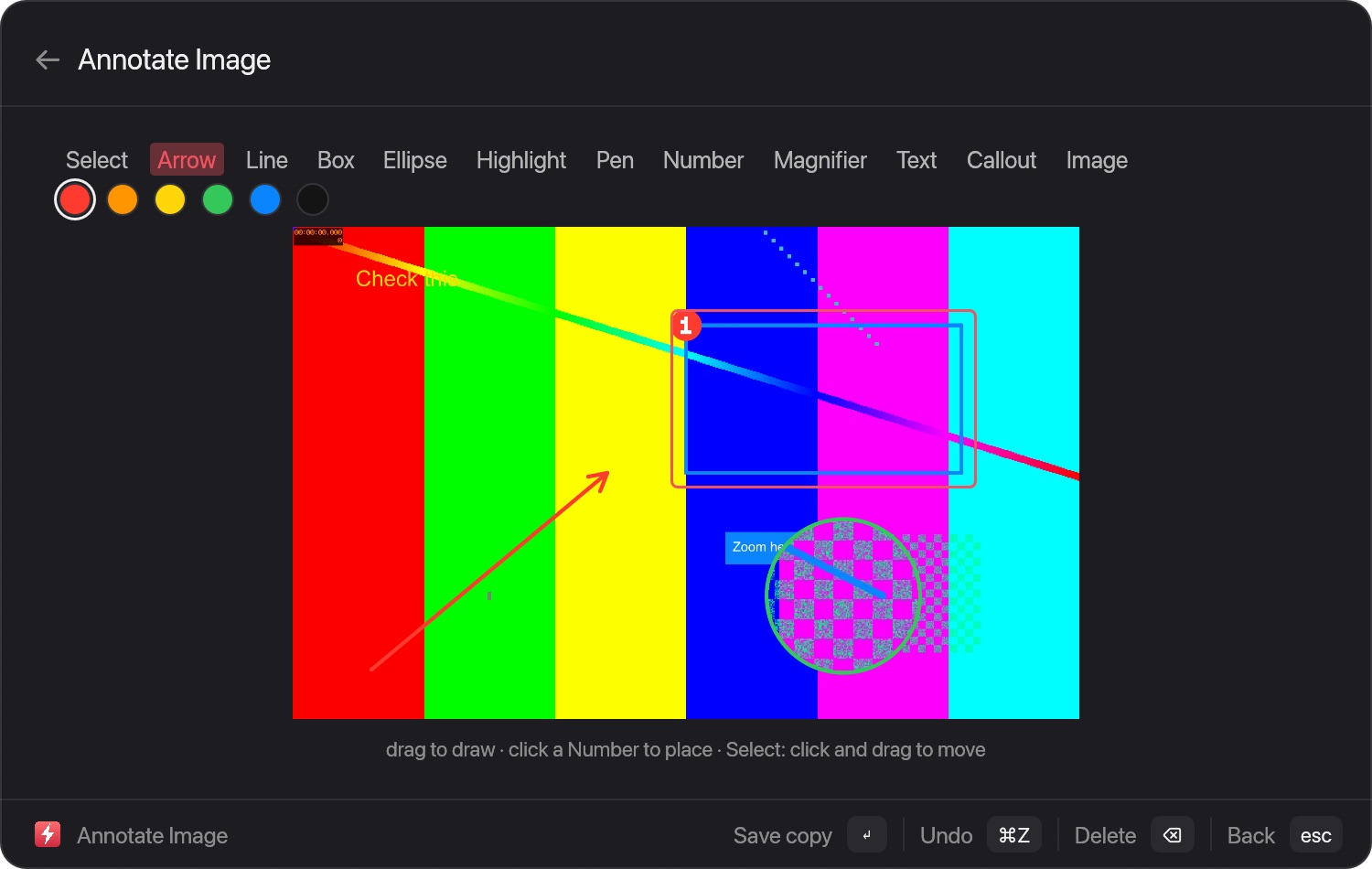
Annotate ImageAnnotate Image: arrows, boxes, numbers, callouts, text and a magnifier, shown here with sample marks already placed.
Questions about conversions
Are conversions really local?
Yes. Nothing is uploaded. Conversions run on your Mac and use the tools that ship with macOS first. ffmpeg, LibreOffice, cwebp, unrar and Ghostscript are optional and are used only when they are installed; chips on this page say which pairs need one.
What can it convert?
There are 46 input formats and 275 conversion pairs across images, audio, video, PDF, documents, slides, spreadsheets, subtitles and archives. Use the explorer above to search them.
Does it overwrite my files?
No. The result is written next to the original with the same name and the new extension. If that name is taken it adds 2, 3 and so on.
Can I press Enter on a file in Finder?
Yes, as an opt-in setting. In Settings > General, turn on “Enter on Finder selection” (off by default, needs Accessibility) and pressing Return on selected files in Finder opens the Convert wheel instead of renaming. The Convert Finder Selection command also works, and Option-Enter on a file result in the launcher does the same.