Search, calculate, paste and ask AI from the keyboard. Drag any file, tap a key, and convert, compress, crop, trim or redact it on your Mac. Open source, 8.5 MB, nothing leaves your disk.
An interactive picture built from the same lists the app uses.
Sample: a PDF. Drag a file, tap Shift.
Sample: an MP4 video. Drag a file, tap Command.
Sample: any file or folder. Drag a file, tap Control.
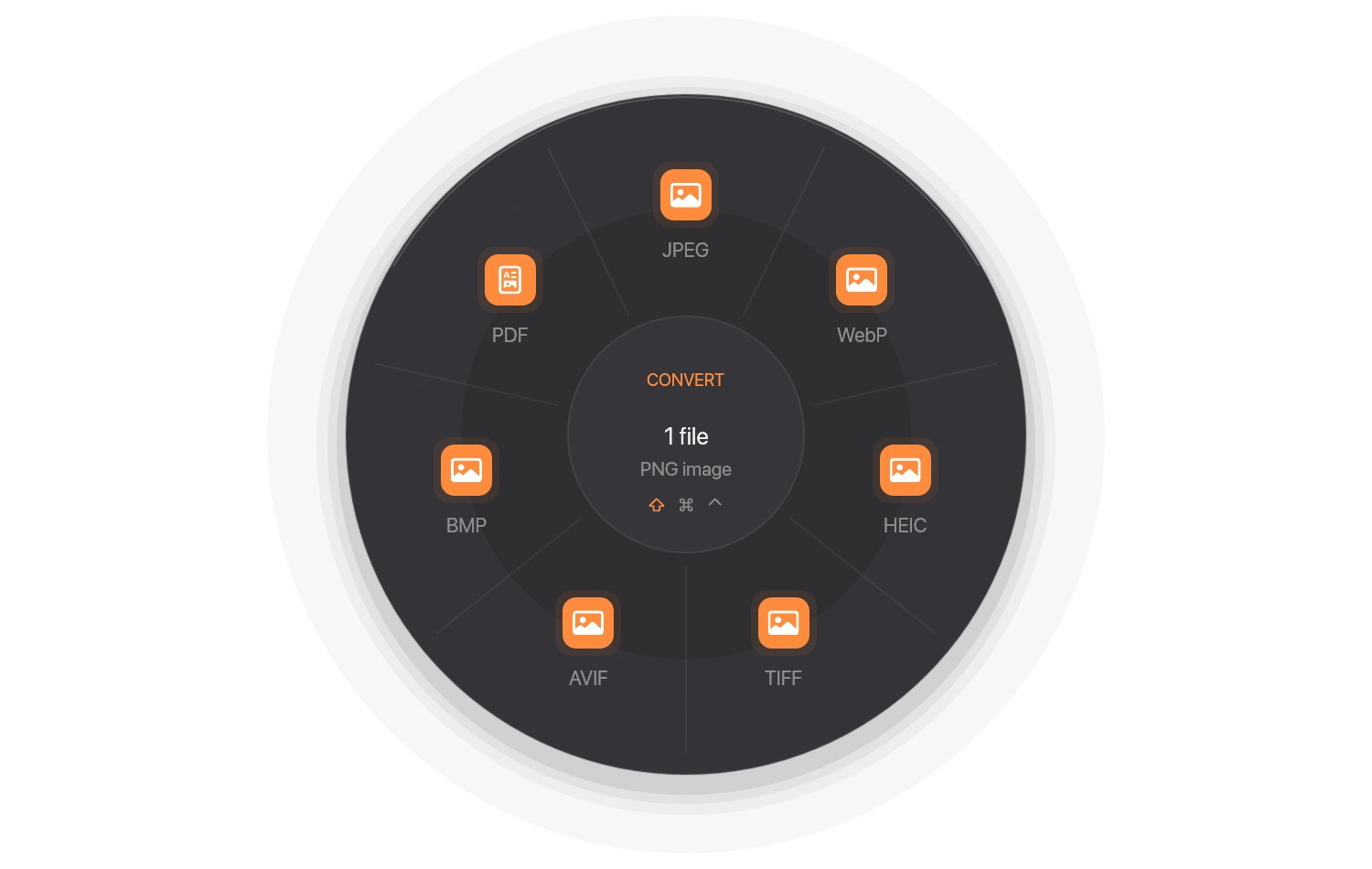
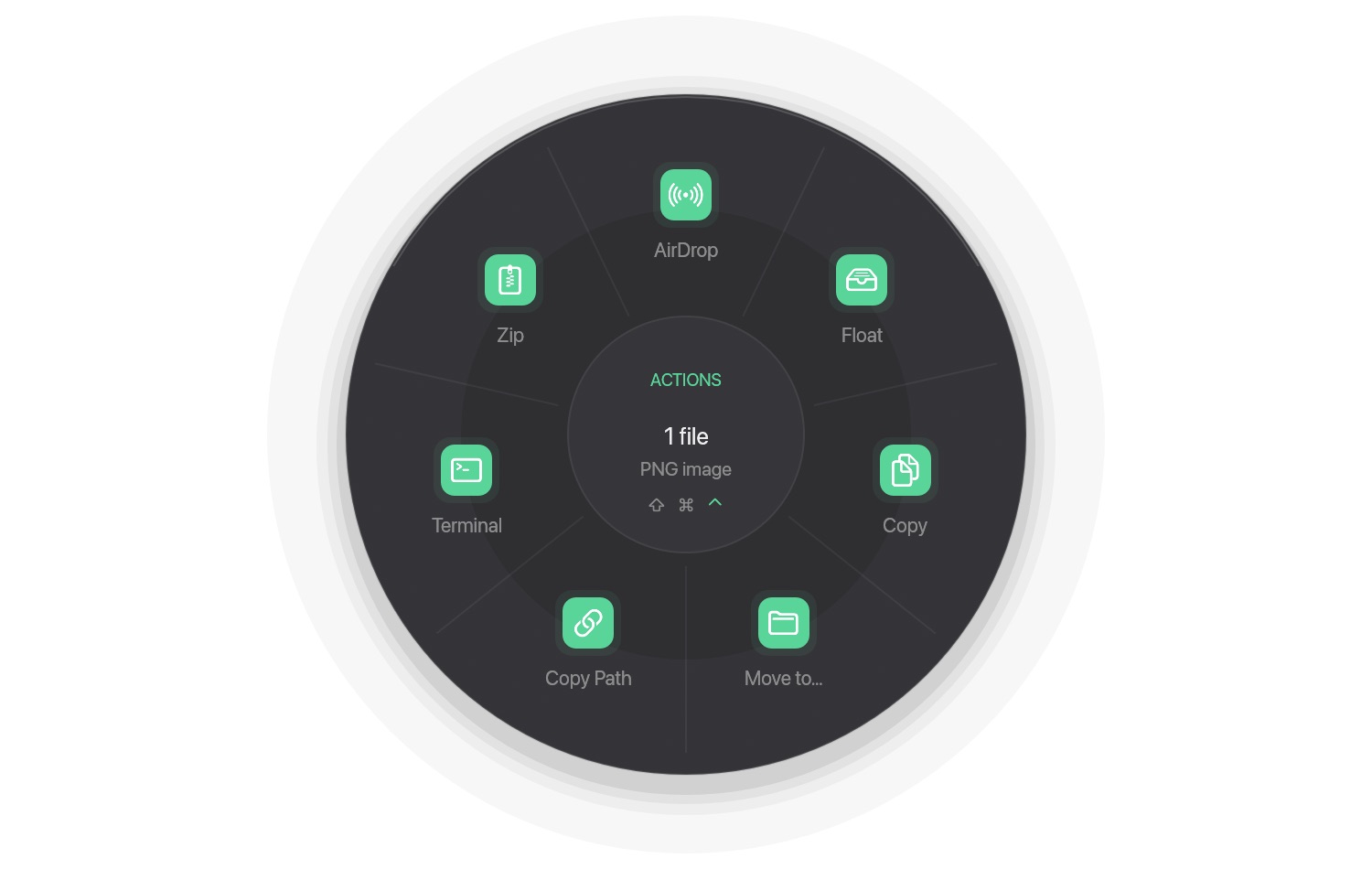
This is a picture of the wheel built from the same lists the app uses, not a recording of the app. Hover or focus a segment, press Shift, ⌘ or Ctrl, and use the arrow keys. Segments marked with a dot need an optional tool installed.
Convert
275 pairs across 46 formats. macOS tools first; ffmpeg, LibreOffice, cwebp, unrar and Ghostscript are optional.
Images8 inputs
Audio8 inputs
Video7 inputs
PDF1 inputs
Documents9 inputs
Slides2 inputs
Spreadsheets5 inputs
Subtitles2 inputs
Archives4 inputs
Tools
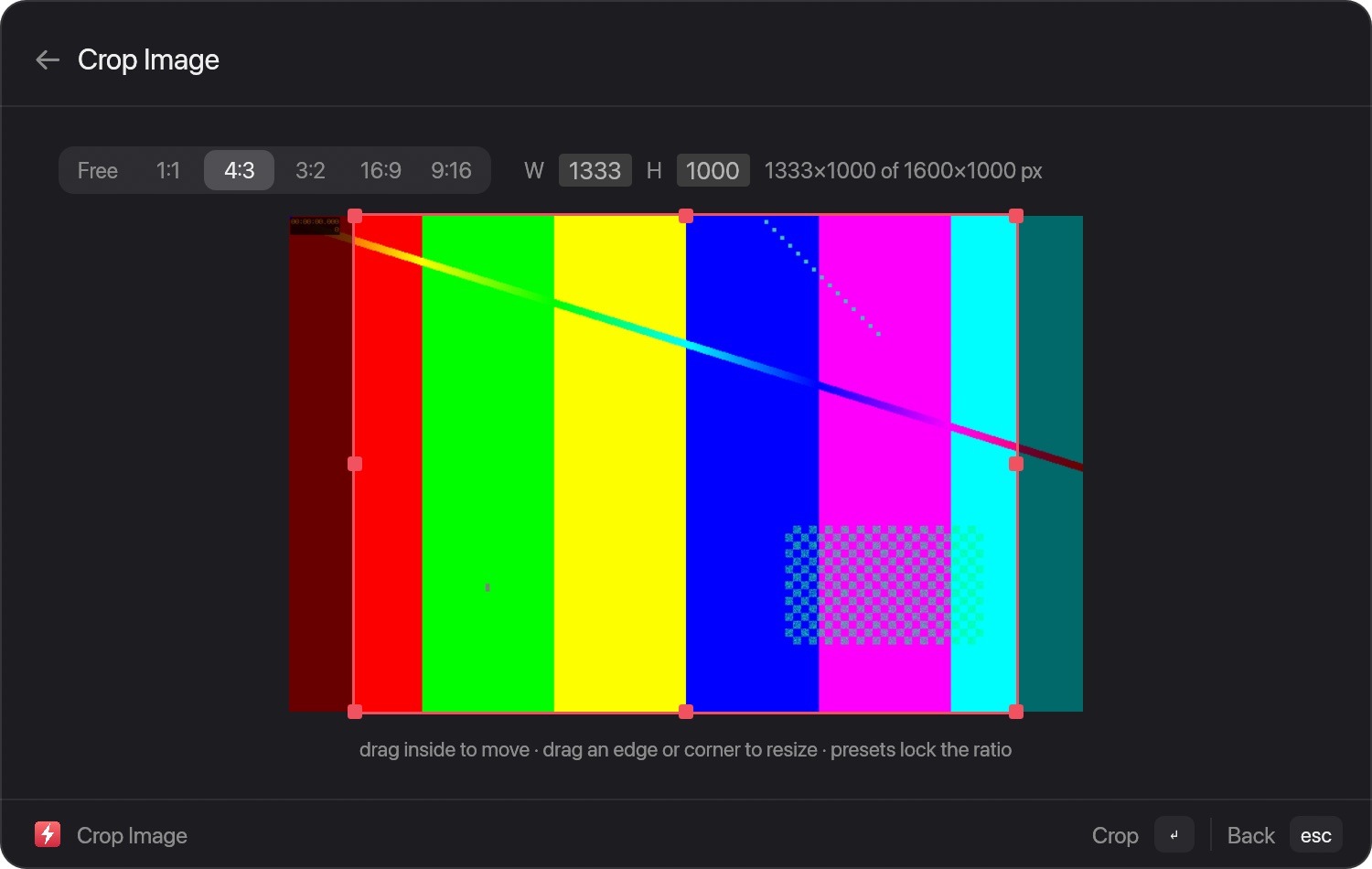
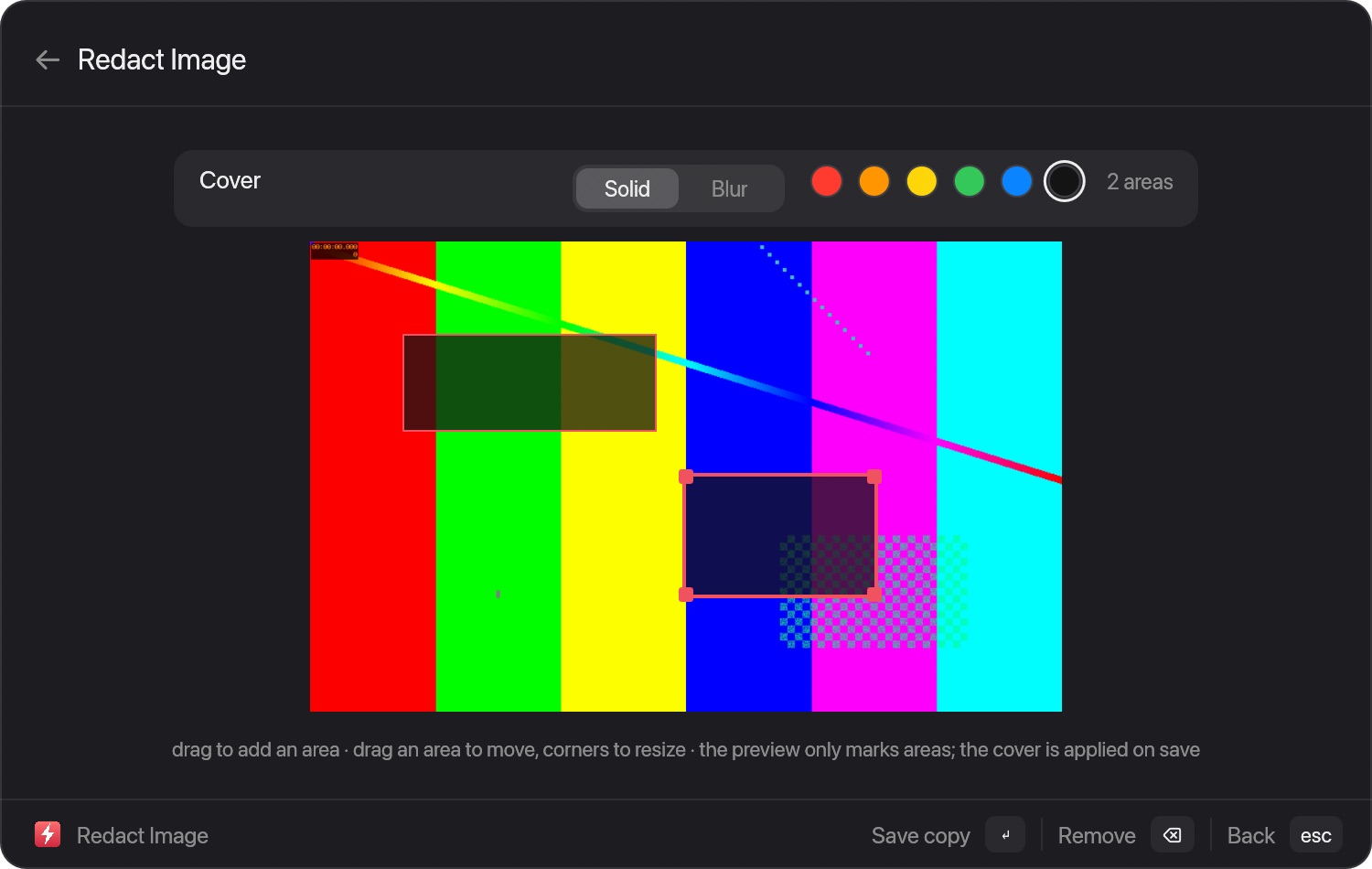
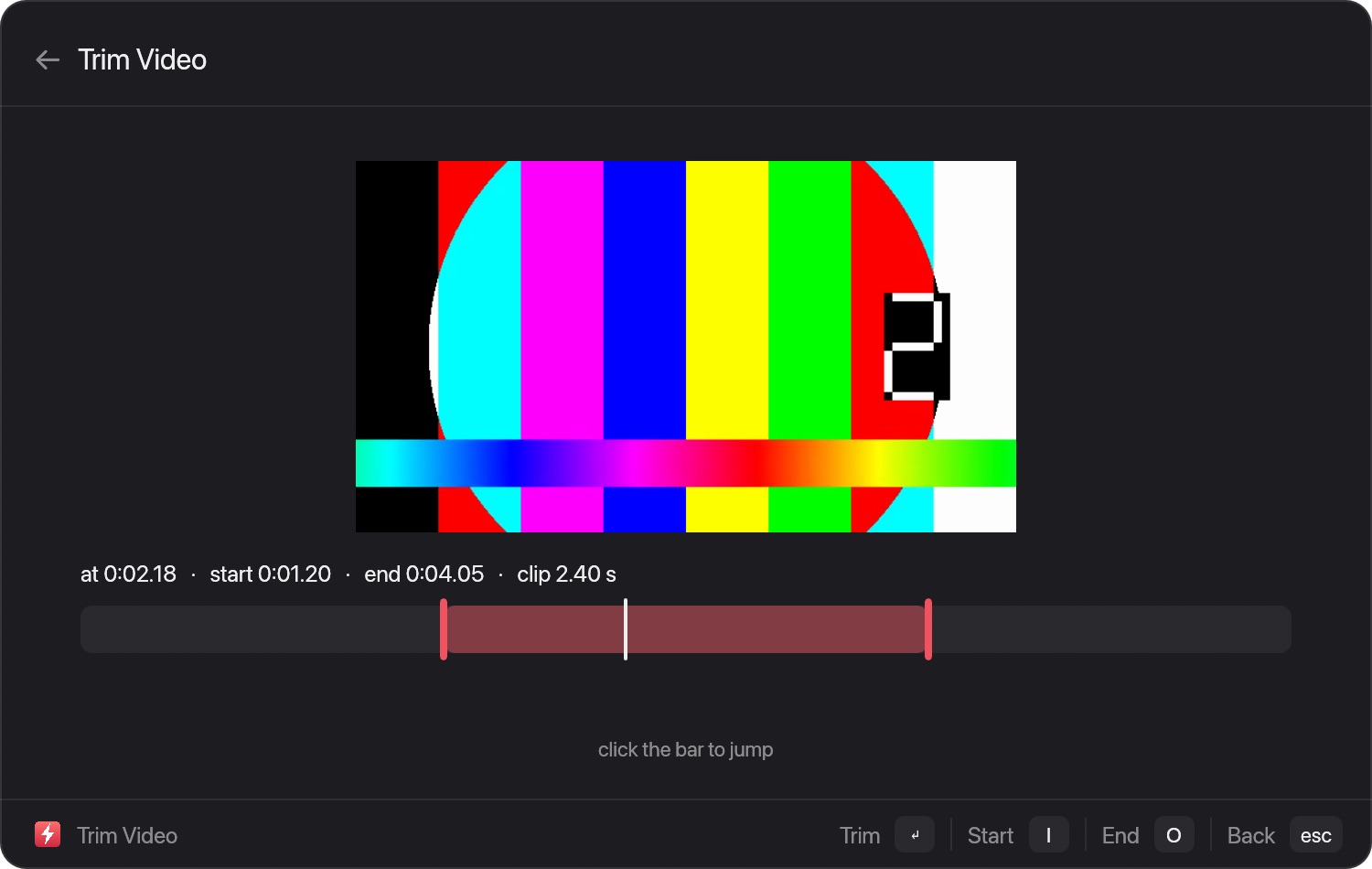
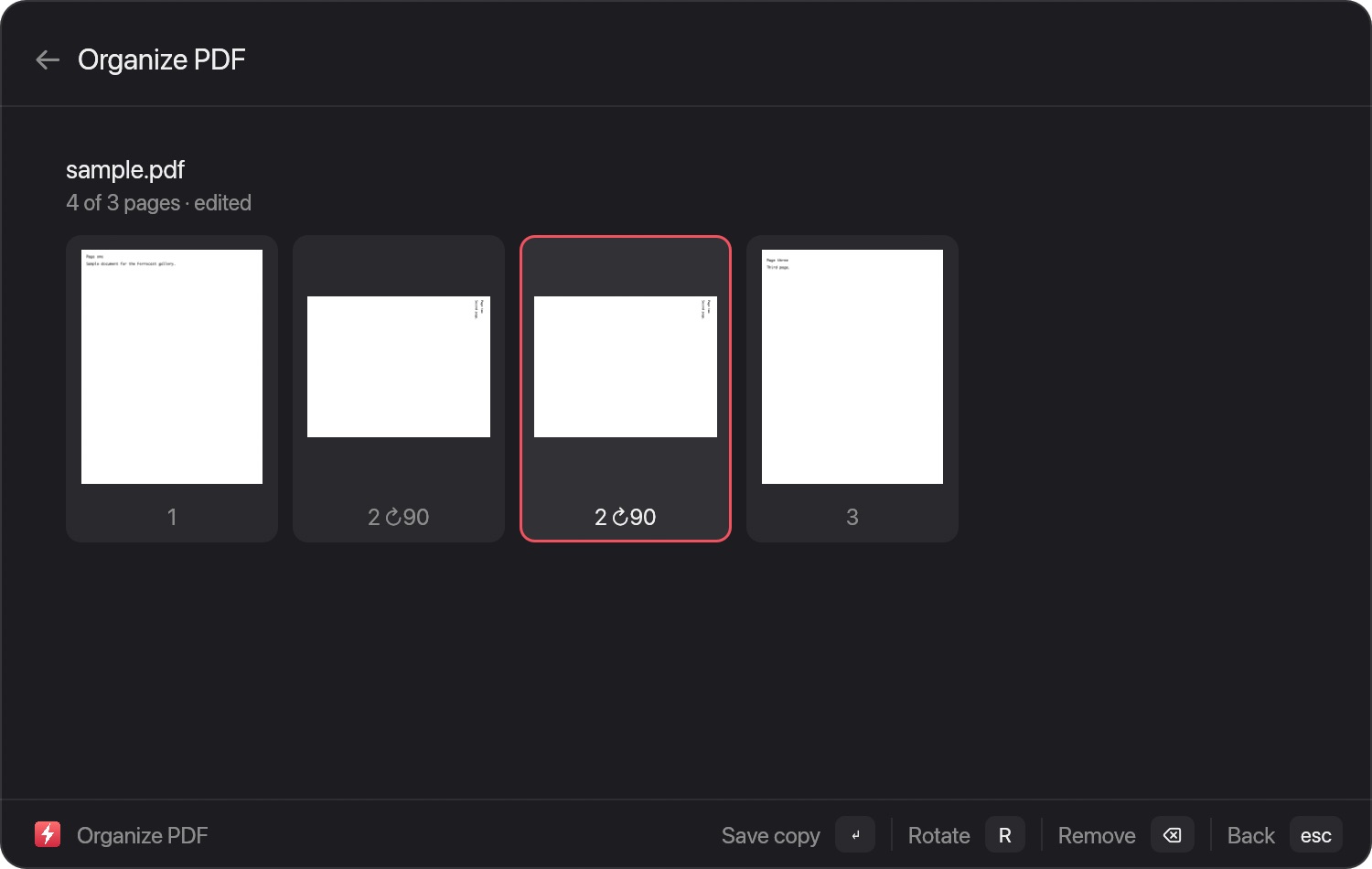
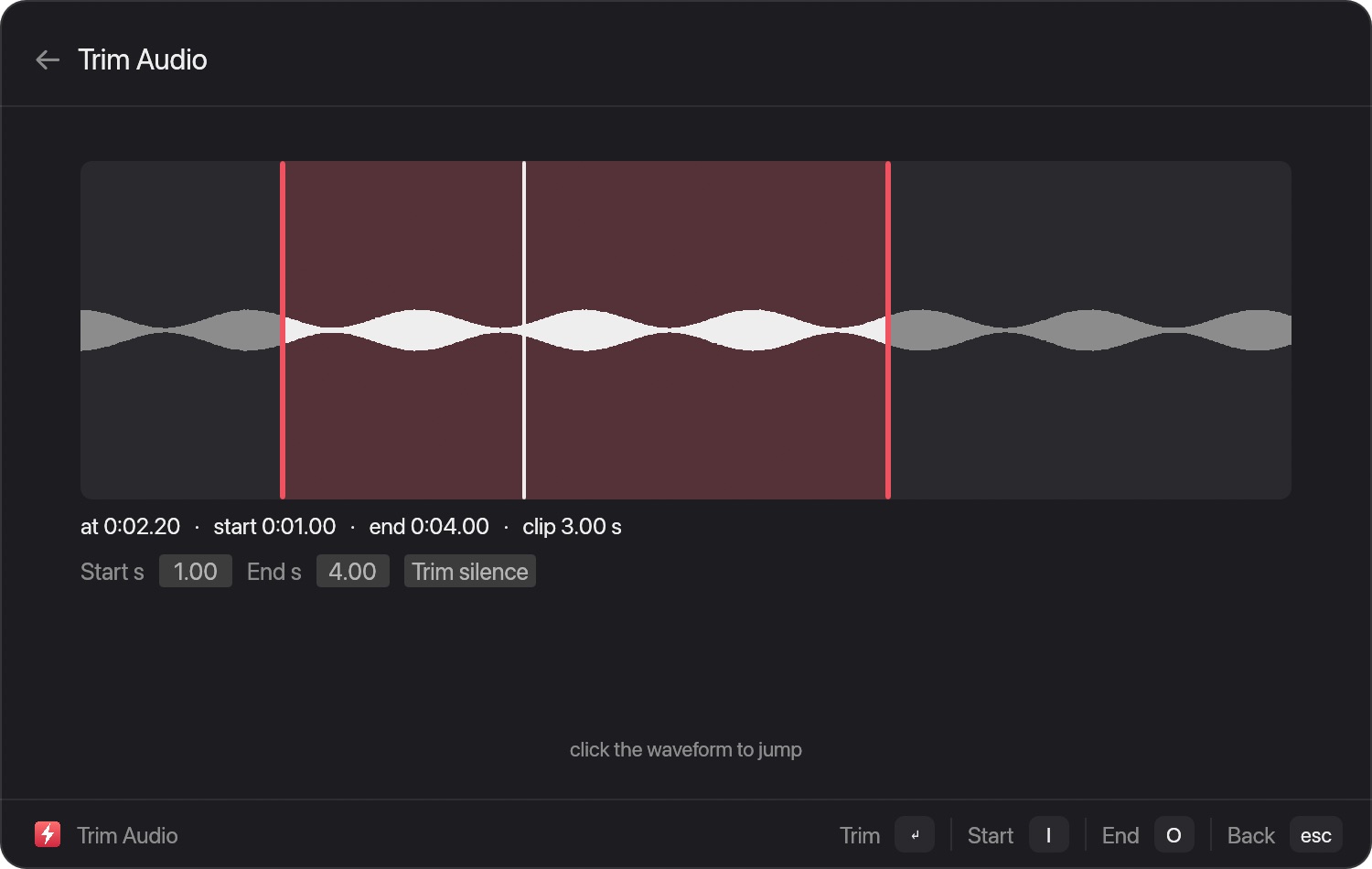
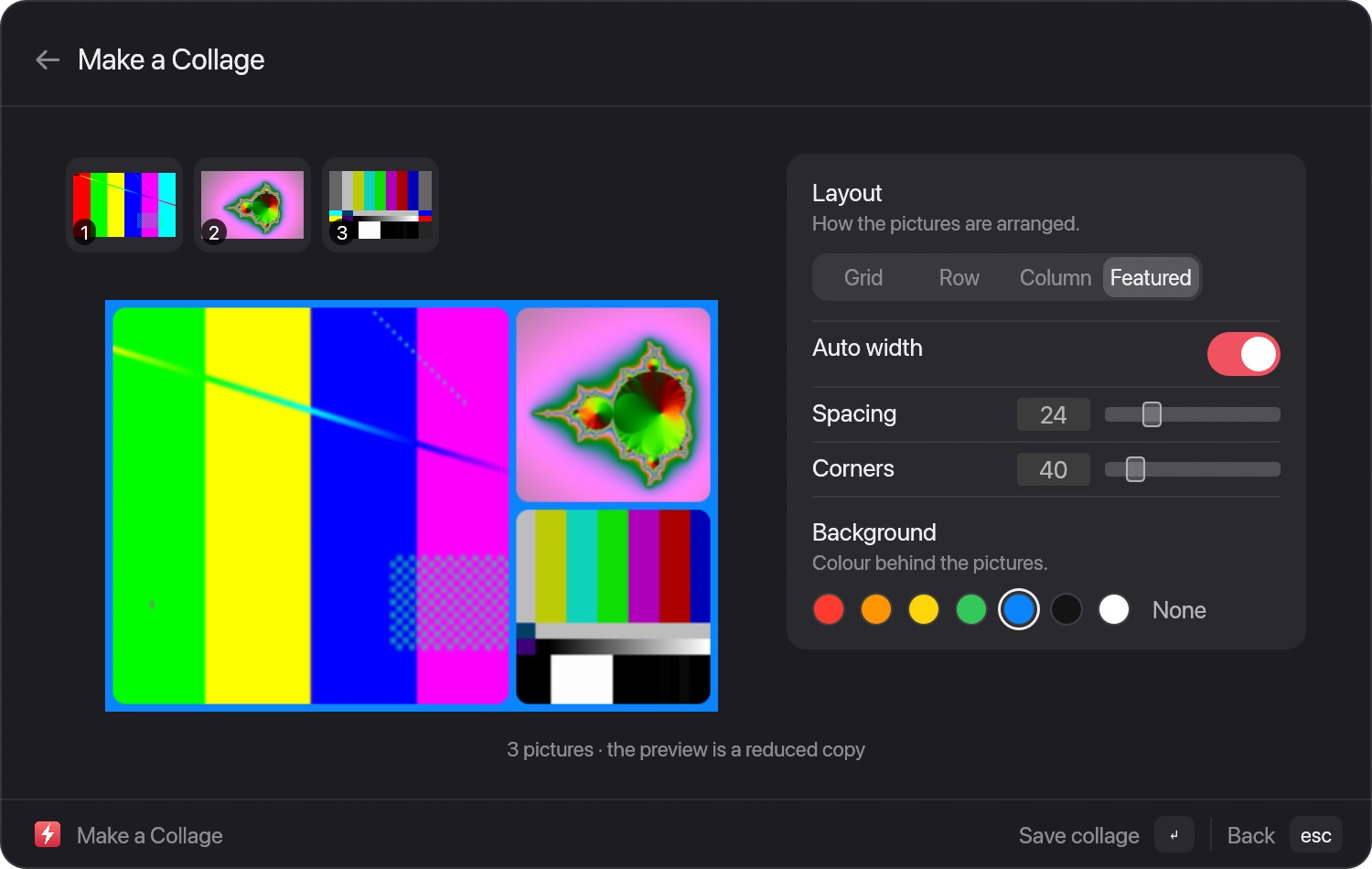
Windows and presets: edit photos, crop, redact, trim video and audio, organize PDF pages, make collages. 26 in all.
Ask AI, your wayOllama on your Mac by default, any OpenAI-compatible server, the Anthropic API, Claude Code or ChatGPT sign-in. Keys stay in the Keychain.Docs →
Window managementAbout 40 commands: halves, thirds, corners, center and moves between displays. Needs Accessibility access.
Script CommandsRaycast-compatible: full, compact, silent and inline modes. Turn any script into a command.#!/bin/bash
# @raycast.mode compact
date +%H:%MDocs →
System toolsKill Process by CPU or memory, timers and pomodoro, Wi-Fi and Keep Awake toggles, Quick Look.Docs →
A tour of the app
Search
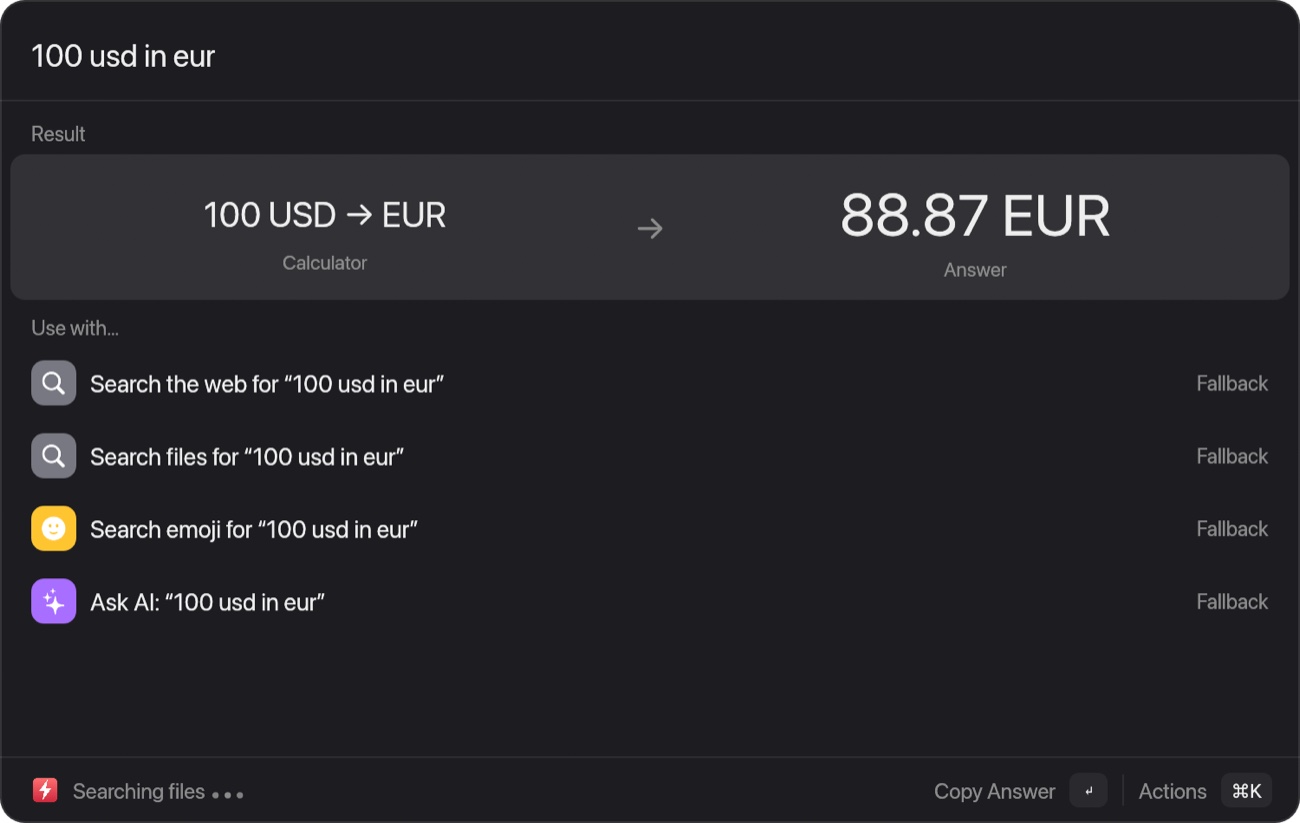
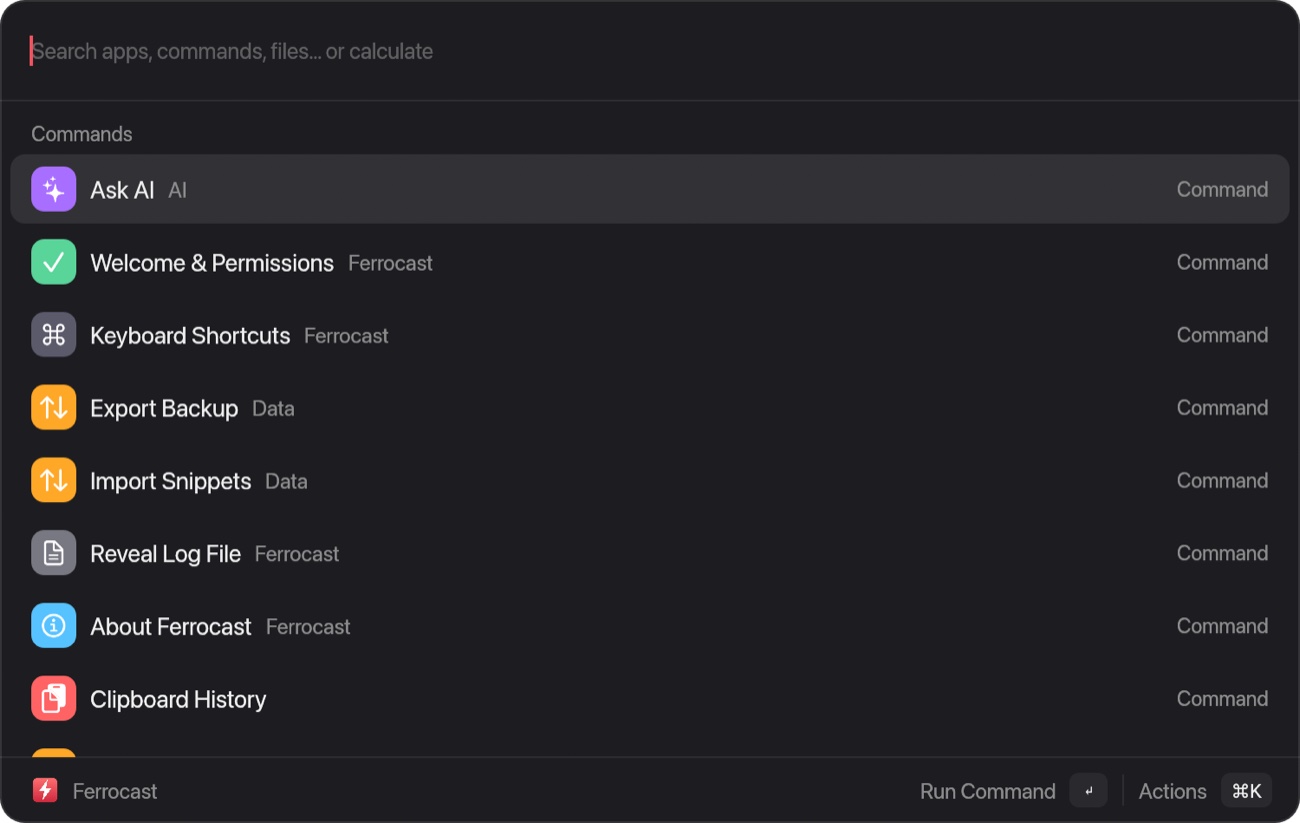
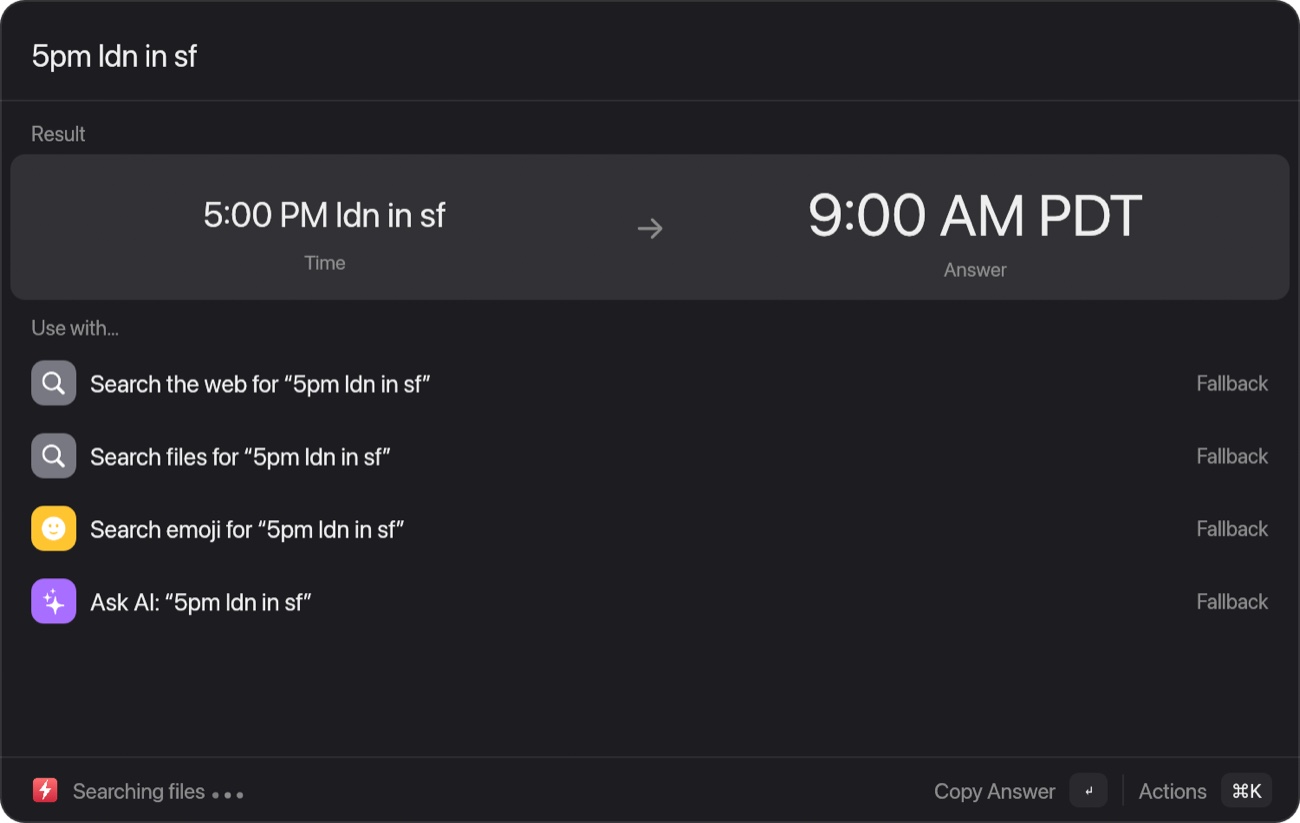
Apps, commands and files in a single field, with math and currency conversion on the same line.
Actions
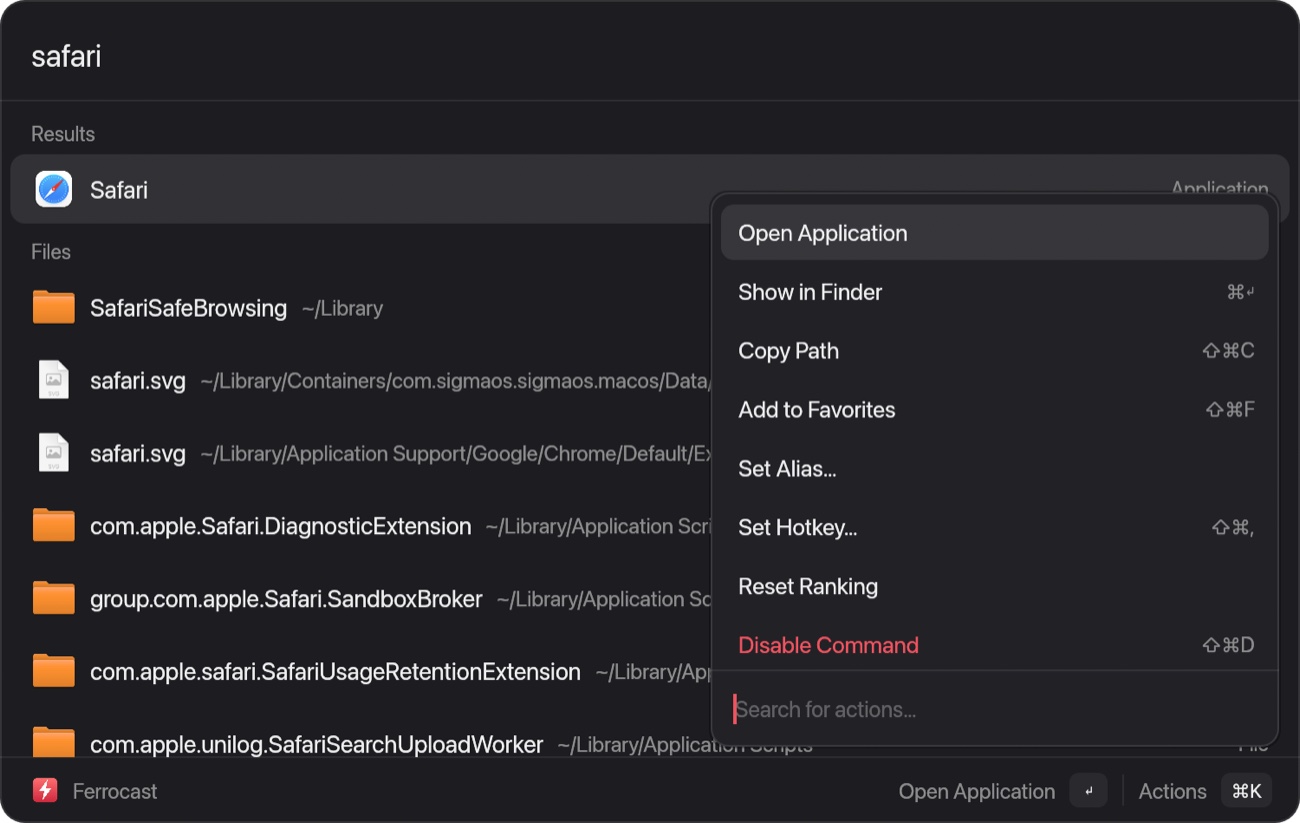
Press ⌘K for actions: aliases, a hotkey for any command, favorites and more.
Clipboard
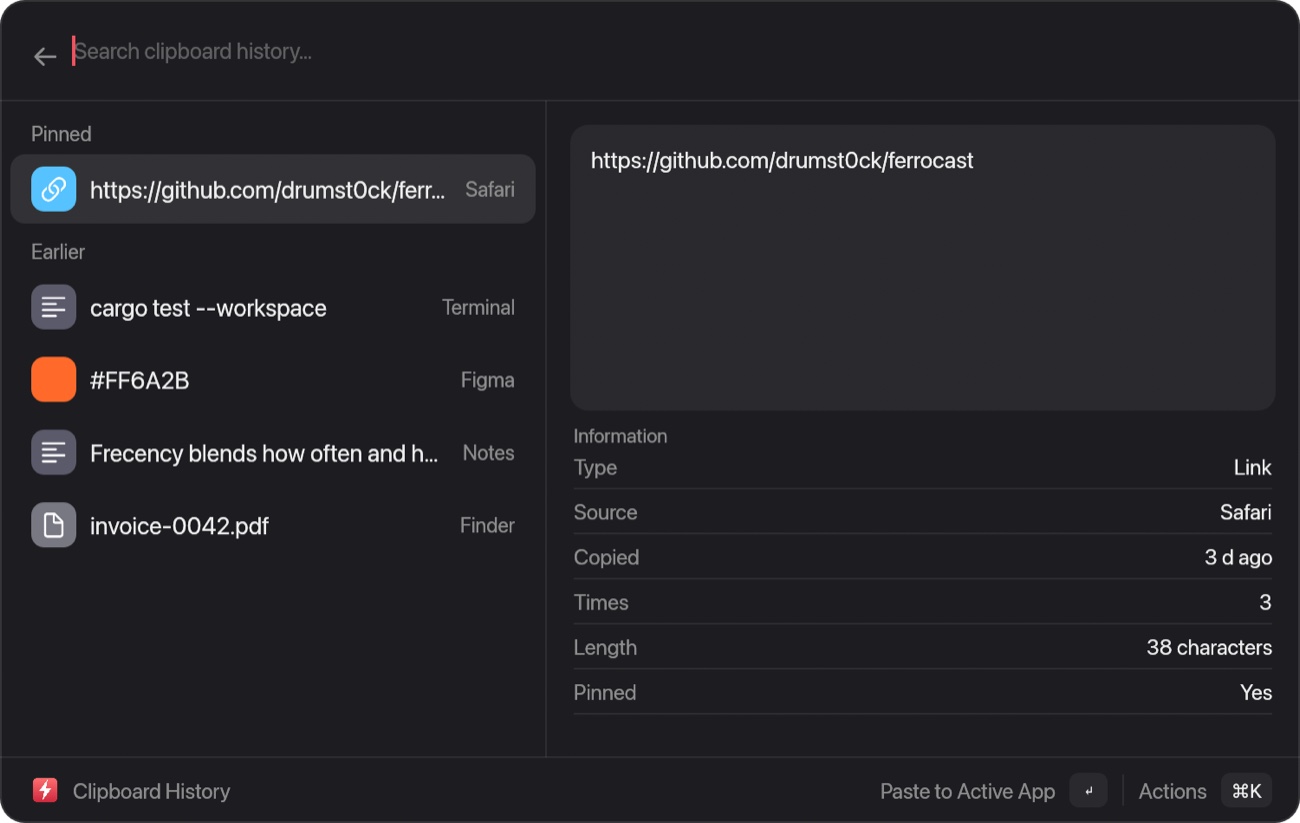
Text, links, colors, files and images. Pin what matters; password managers are ignored.
Snippets
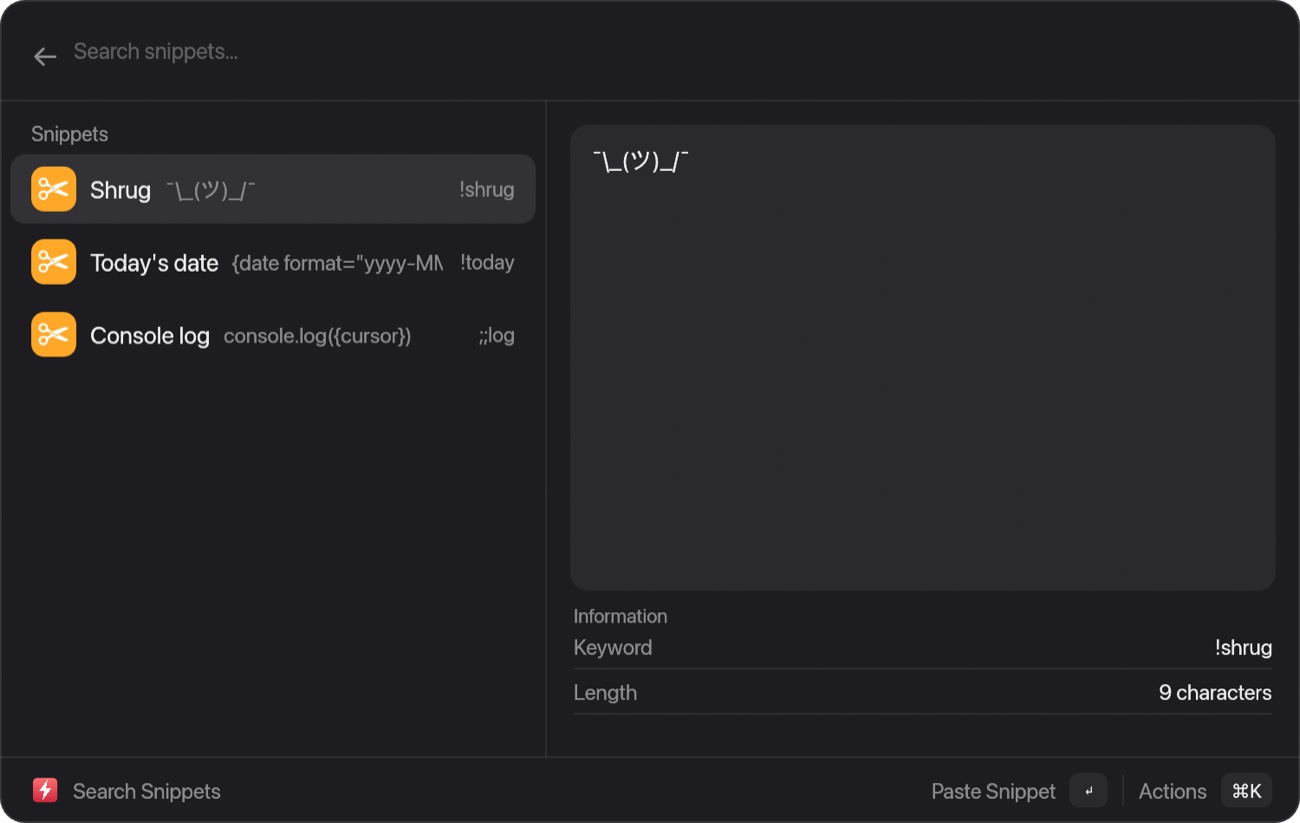
Type a keyword and it expands as you write, with placeholders like {date}, {clipboard} and {cursor}.
Ask AI
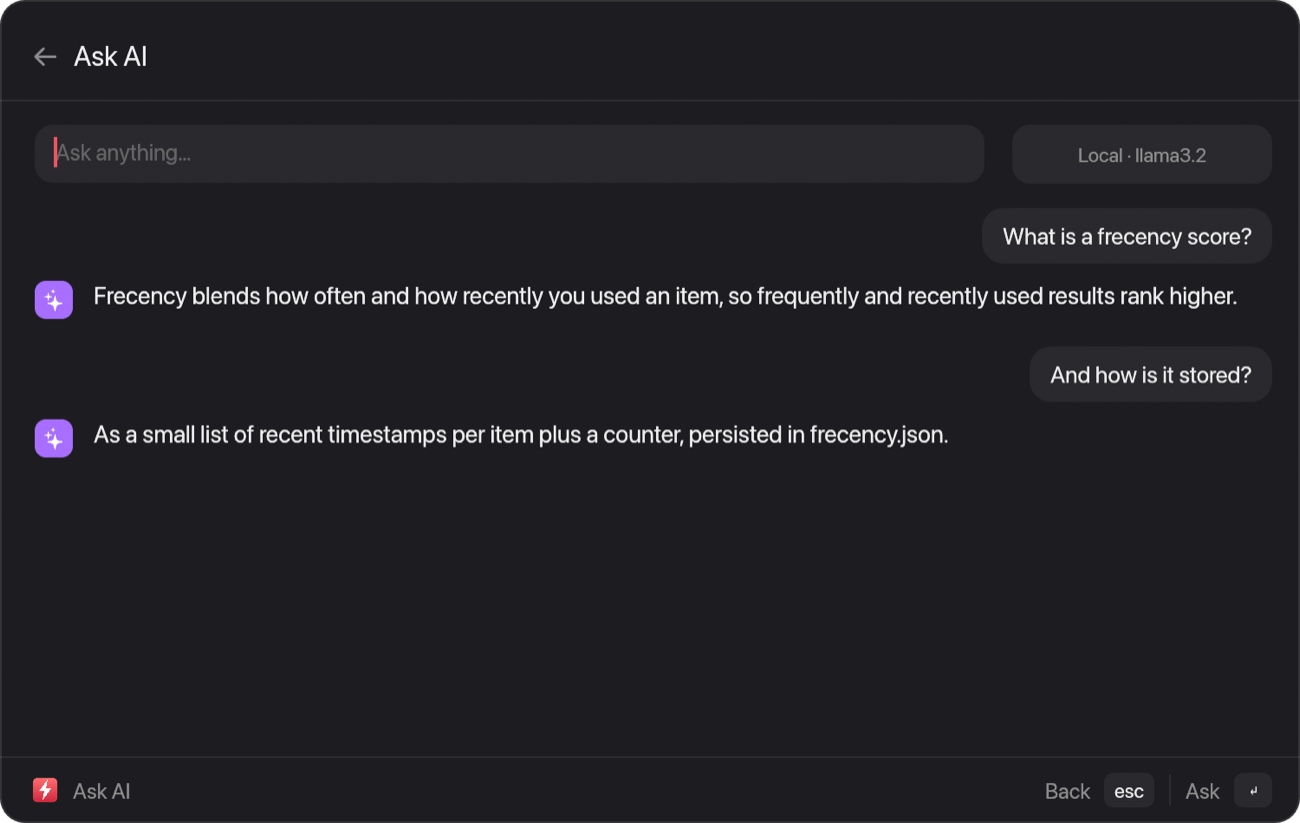
Chat with Ollama, LM Studio, OpenAI, the Anthropic API or Claude Code. Answers stream in; keys stay in the Keychain.
Drop a file
Drag a file onto the launcher, tap ⇧ and drop it on the format you want. The result lands next to the original.
Edit
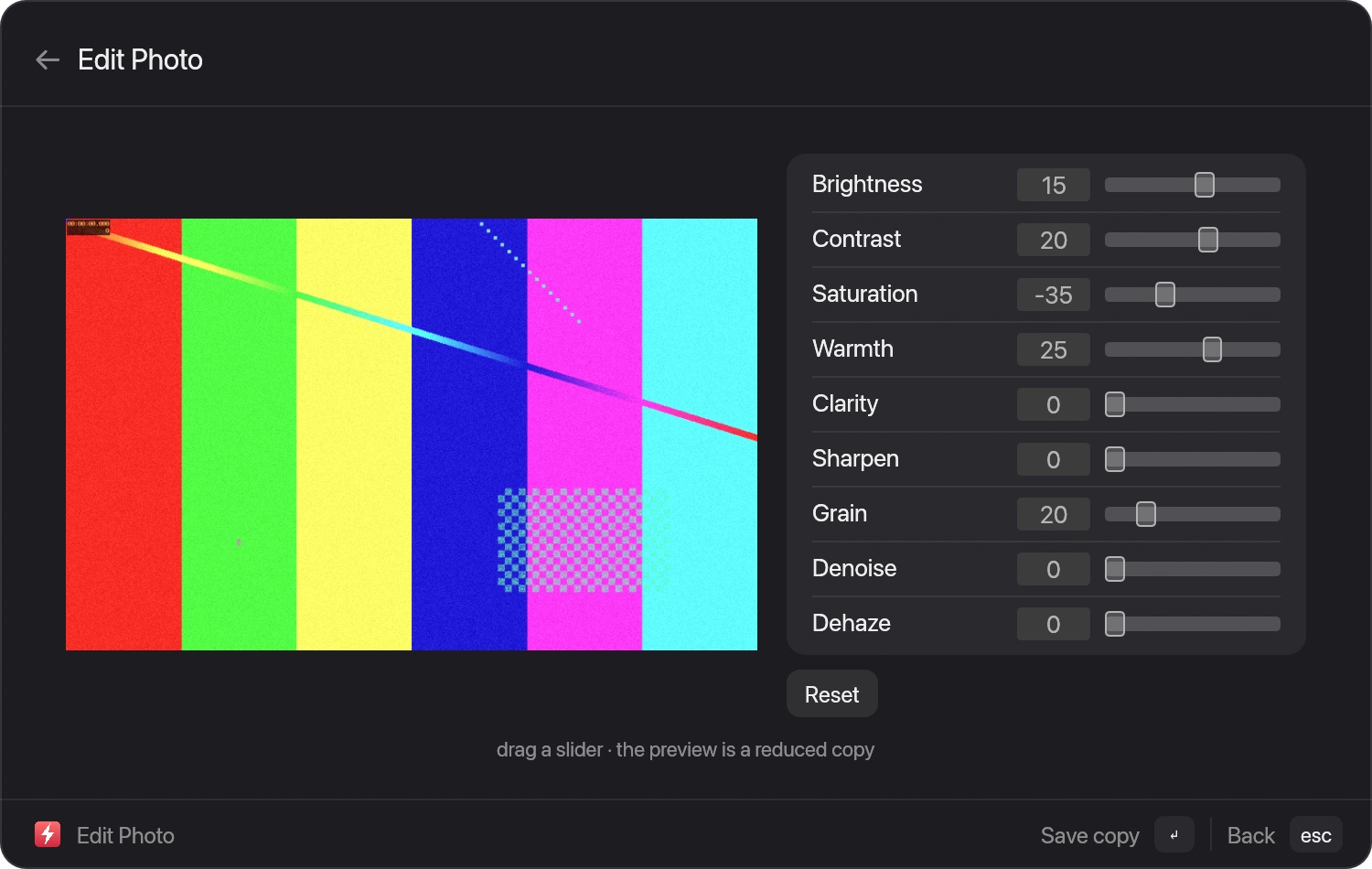
Nine sliders with a live preview; ↵ writes a full-size copy, never over the original.
Settings
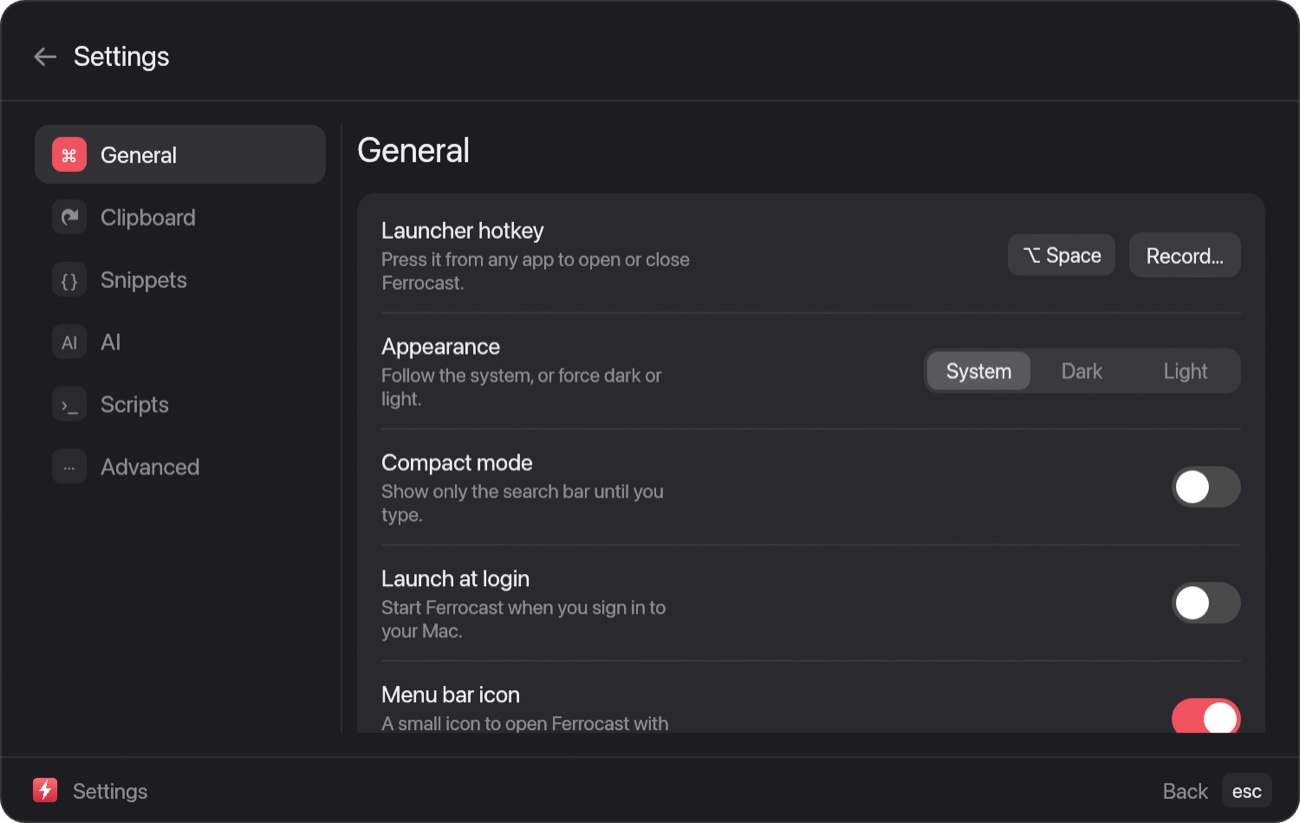
Six tabs, plain-language descriptions, and an AI tab that tests the connection to your model server.
No mock-ups. This is the app.
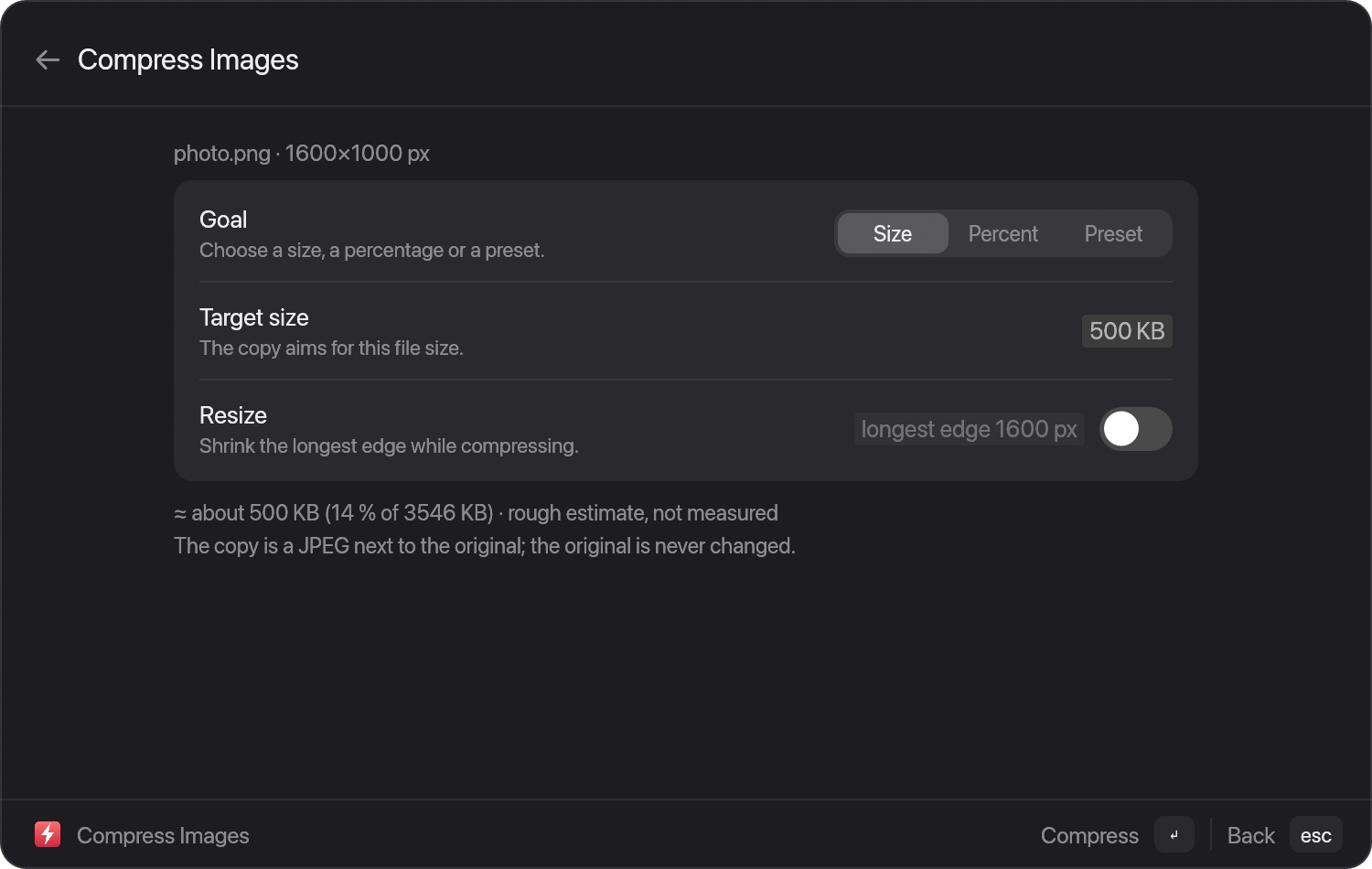
Every frame is a screenshot the app took of itself while a query was typed.
Measured, not promised
Footprint and speed of Ferrocast, measured on one Mac. On disk it is a single 8.5 MB app, it draws its first frame in under a fifth of a second, and once it is running the launcher answers a hotkey in about two milliseconds.
Ferrocast
App on disk8.5 MB
Memory at idle145 MB
Processes1
Hotkey to drawn frameabout 2 ms
Keystroke to new results0.1 to 0.3 ms
Cold start to first frameabout 150 ms
Method: MacBook with Apple M3, macOS 27, 2026-10-17. Disk is du -sh of the app bundle. Memory is resident size from ps -axo rss, summed over every process the app runs, with the app idle and its window shown. Hotkey to frame is the time from the show call to the next frame the app draws (1.6 to 2.6 ms; the display adds its own refresh on top). Keystroke to results is how long the list takes to recompute for queries like “100 usd in eur”. Cold start is process launch to first rendered frame over five launches (136 to 167 ms), almost all of it macOS creating the window. Your numbers will differ.
Ask AI, on your terms
Out of the box it talks to Ollama on your own Mac. Point it at another provider if you prefer; keys go in the Keychain.
Ollama (default)
LM Studio
OpenAI-compatible server
Anthropic API
Claude Code
ChatGPT sign-in
ChatGPT sign-in follows the flow of OpenAI’s Codex CLI; it works, but OpenAI has not blessed third-party apps doing that, so the API with a key is the by-the-book route.
The OpenAI-compatible provider, Claude Code and the Anthropic API (with your own key) are supported.
⌥SpaceOpen or close Ferrocast. You can change it in Settings.
↑↓Move the selection.
↵Run the primary action.
⌘↵Run the secondary action.
⌘KOpen the action panel for the selected item.
⌘,Open Settings.
⌘NNew snippet, quicklink or note in those lists.
⇧⌘FAdd or remove a favorite.
⇧⌘,Set a hotkey for a command.
escClear the search, go back, or close.
⌃XDelete the selected entry.
⌘YQuick Look the selected file.
⌘.Pin or unpin a clipboard entry.
⌘EEdit the selected snippet or quicklink.
⌫Go back when the search is empty.
Installed in the time it takes to make a coffee
Download the DMG and drag Ferrocast to Applications.
DownloadOpen the DMG, drag Ferrocast to Applications, and choose “Open Anyway” in System Settings the first time you open it.
Apple Silicon only, for now. Prefer Homebrew? It is in the installation guide. Installation guide →
Open it once and say yes to Accessibility.
⌥ Space
Then just start typing.
5pm ldn in sf
Things people ask us
Press ⌥ Space from any app. You can change the shortcut in Settings.
Yes. MIT licence, no account, no Pro tier. If it saves you time, star the repo.
Yes. Nothing is uploaded: conversions run on your Mac. macOS tools come first; ffmpeg, LibreOffice and Ghostscript are optional and used only when they are installed. Pairs that need one say so on the Files page.
Images, audio, video, PDF, documents, slides, spreadsheets, subtitles and archives: 46 input formats and 275 conversion pairs. The explorer on the Files page lets you search them.
Not for many pairs: macOS tools come first (sips, afconvert, avconvert, textutil, ditto). ffmpeg, LibreOffice, cwebp, unrar and Ghostscript are optional and used only when installed; pairs that need one are marked.
No. The result is written next to the original with the same name and the new extension. If that name is taken it adds 2, 3 and so on.
Yes, through ffmpeg: the bitrate is computed from the size you ask for. The size estimate is rough, and PDF compression needs optional Ghostscript.
It runs on Apple Silicon Macs. Intel Macs are not supported.
No. Download the DMG, drag Ferrocast to Applications and open it. The first time, macOS asks you to confirm it in System Settings.
Because moving windows, pasting for you and expanding snippets all need it. Search, the calculator and AI work without it. A welcome screen walks you through it.
It never leaves your Mac. It sits in a JSON file in Application Support, and anything copied from a password manager like 1Password is skipped on purpose.
Only if you tell it to. Out of the box it talks to Ollama on your own Mac. Point it at LM Studio, OpenAI or the Anthropic API if you prefer; keys go in the Keychain.
Yes, with caveats we spell out in the app. Claude: if Claude Code is installed and signed in, Ferrocast uses it as a provider, since it is Anthropic’s own tool. ChatGPT: Ferrocast can sign in with your account the way OpenAI’s Codex CLI does; it works, but OpenAI has not blessed third-party apps doing that, so the API with a key is the by-the-book route.
Your Script Commands run as they are, and snippets import from a JSON export. Quicklinks you recreate in a minute.
An extension store and sync between Macs.
Press ⌥ Space from any app. You can change the shortcut in Settings.
What changed lately
Every release and every change is listed on the changelog page.
 Ferrocast Español Install